

7. Logging On to Windows
Logging on means signing in to a computer account to gain access to the desktop and available system resources.
On a computer that requires authentication, a login screen appears when the system is ready.
The general steps are:
- Switch on the computer.
- Wait for the operating system to start.
- Select the appropriate user account, if required.
- Enter the password or other requested authentication details.
- Press the Enter key or select the sign-in button.
After successful sign-in, the desktop becomes available.
A password should be kept private. Users should not share their login credentials with unauthorized people.
8. Desktop and Its Elements
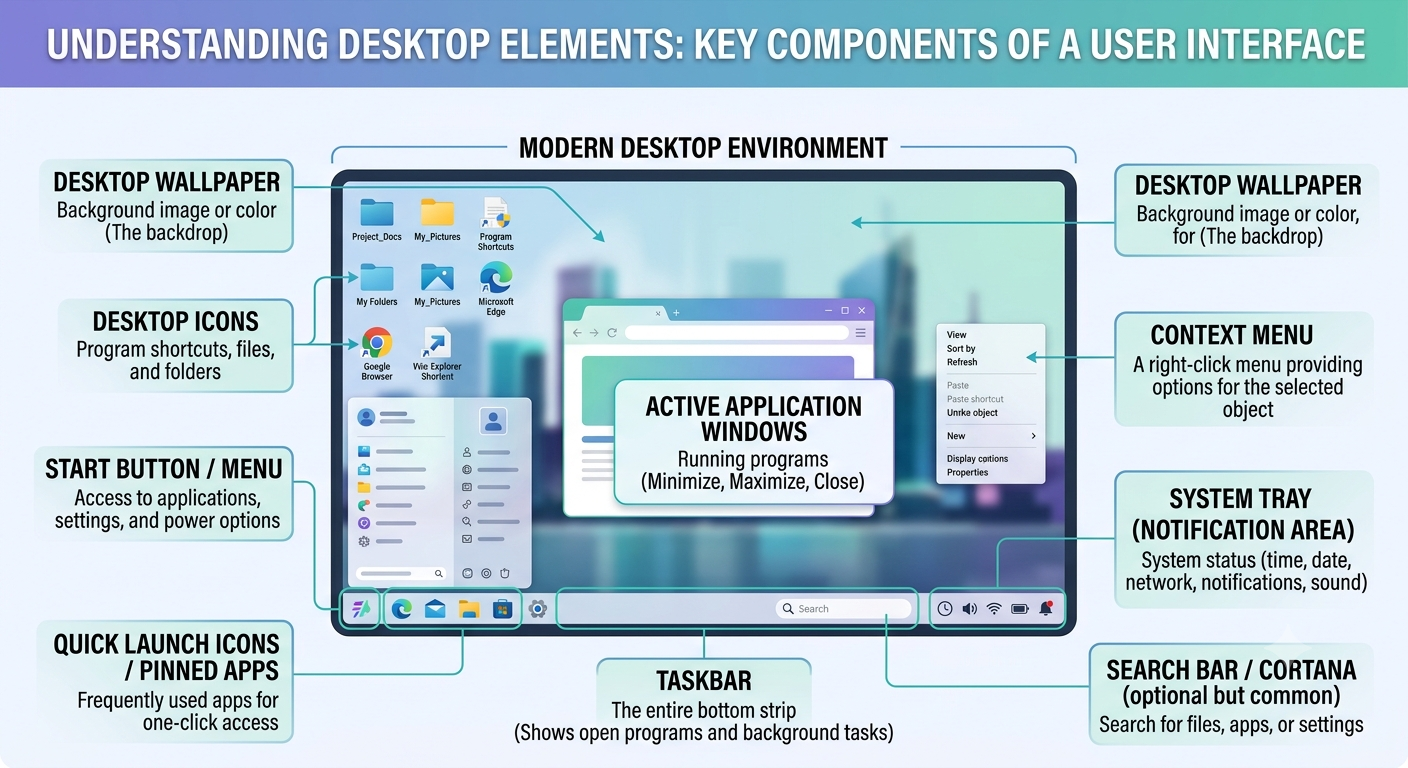
The desktop is the main working area displayed after a user signs in to a graphical operating system.
In the Windows environment described in the NIOS course, the desktop contains elements that help users open applications, access files, and control the computer.
8.1 Icons
An icon is a small graphical symbol representing a file, folder, application, or system location.
Examples include icons for the Recycle Bin, This PC, folders, and applications.
Users can select or open items by clicking or double-clicking, depending on the system and its settings.
8.2 Start Menu
The Start Menu provides access to applications, system tools, settings, search functions, and other options.
In Windows XP, the Start Menu includes options such as All Programs, My Documents, My Recent Documents, My Pictures, My Music, Control Panel, Help and Support, Search, Run, Log Off, and Turn Off Computer.
The exact names and arrangement of these options vary across Windows versions.
8.3 All Programs
In the Windows XP environment covered by the course, the All Programs option displays installed applications and program groups.
A user can select the required application from this list.
8.4 My Documents
My Documents is a folder used in older Windows versions to store and organize a user’s documents and other files.
Modern Windows versions generally use the Documents folder.
8.5 My Computer
My Computer is the name used in older Windows versions for a system location that provides access to available storage drives and other computer resources.
In newer versions of Windows, a similar location is called This PC.
8.6 Recycle Bin
The Recycle Bin is a location where many files deleted from local Windows storage are temporarily kept.
It allows users to restore eligible deleted files if they are needed again.
However, files removed permanently or deleted from certain removable or network locations may not be available in the Recycle Bin.
8.7 Control Panel
Control Panel provides access to various system configuration tools in Windows.
Depending on the Windows version, it can be used to manage hardware, programs, user accounts, and other settings.
Modern Windows versions also provide many settings through the Settings application.


