
Three Different Ways to Protect an Excel Workbook
Introduction
Microsoft Excel is widely used to store important information, including financial records, employee details, student marks, and business reports. Such information must be protected against unauthorized access and accidental changes. Excel provides several protection features that help users safeguard their data and maintain the accuracy of their work.

The three main methods of protection are password-protecting the Excel file, protecting a worksheet, and protecting the workbook structure.
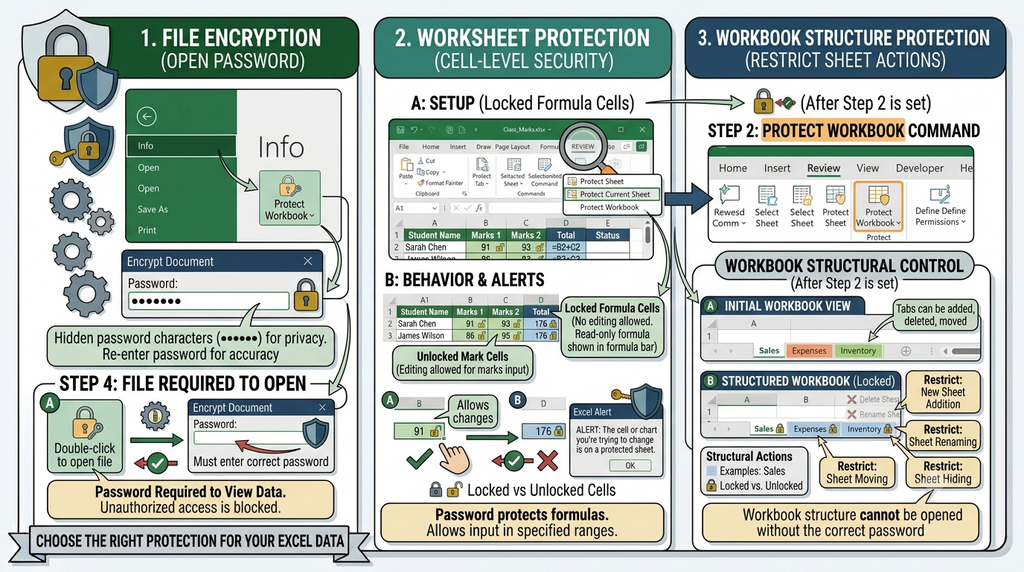
1. Protecting an Excel File with a Password
Password protection at the file level prevents unauthorized users from opening the Excel file. This method is useful when a workbook contains confidential or sensitive information.
Steps to Protect an Excel File
- Open the Excel workbook.
- Click File and select Info.
- Click Protect Workbook.
- Select Encrypt with Password.
- Enter a password and click OK.
- Re-enter the password to confirm it.
- Save the workbook.
After this protection is applied, users must enter the correct password to open the file.
Example: A company can password-protect a payroll workbook to prevent unauthorized people from viewing employee salary information.
2. Protecting a Worksheet
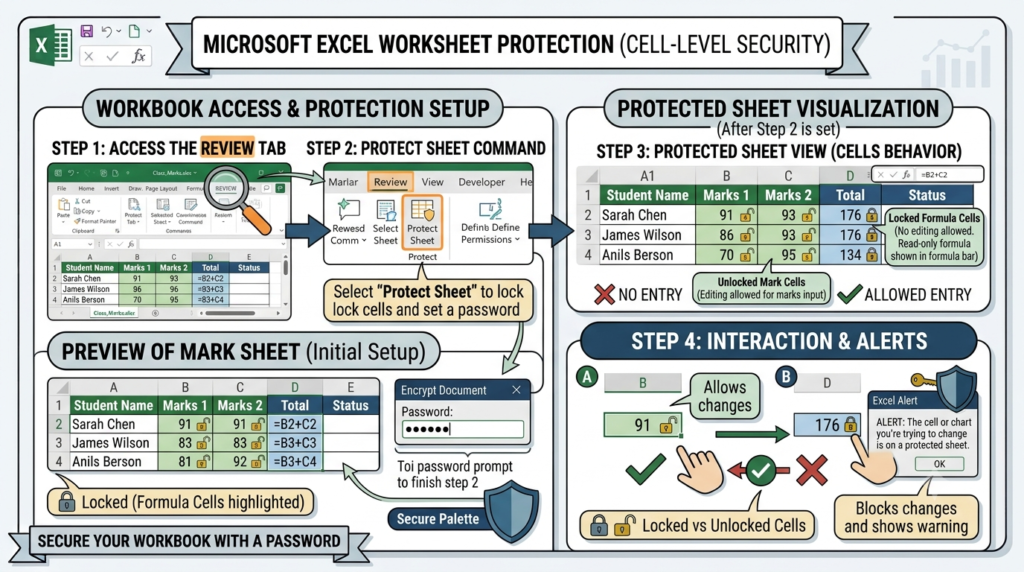
Worksheet protection helps prevent users from changing or deleting important information in a worksheet. It is especially useful for protecting formulas and fixed data while allowing users to enter information in designated cells.
Steps to Protect a Worksheet
- Open the worksheet that needs protection.
- If certain cells must remain editable, select those cells and open Format Cells.
- Under the Protection tab, clear the Locked option for the cells that users may edit.
- Open the Review tab.
- Select Protect Sheet.
- Choose the actions users are allowed to perform.
- Enter a password if required, confirm it, and apply the protection.
Once the worksheet is protected, users are restricted from modifying locked cells according to the selected protection settings.
Example: A teacher can protect a marksheet containing formulas for calculating total marks while allowing marks to be entered in designated cells.
3. Protecting the Workbook Structure
Workbook structure protection prevents users from making certain changes to the arrangement of worksheets within a workbook. It helps maintain the organization of a spreadsheet file.
When the workbook structure is protected, users cannot perform restricted actions such as adding, deleting, moving, renaming, hiding, or unhiding worksheets.
Steps to Protect Workbook Structure
- Open the Excel workbook.
- Click the Review tab.
- Select Protect Workbook.
- Enter a password if required.
- Click OK and re-enter the password to confirm it.
- Save the workbook.
After protection is enabled, the workbook’s worksheet structure cannot be changed unless the protection is removed by an authorized user.
Example: An organization can protect a workbook containing separate worksheets for sales, expenses, and inventory to prevent employees from accidentally renaming or deleting important sheets.
Importance of Workbook Protection
Excel protection features provide several benefits:
- Confidentiality: File encryption helps prevent unauthorized access to sensitive information.
- Data accuracy: Worksheet protection helps prevent accidental changes to important values and formulas.
- Organization: Workbook structure protection helps maintain the arrangement of worksheets.
- Reduced errors: Protection settings can restrict unwanted editing and structural changes.
- Controlled access: Users can be permitted to perform specific actions while other actions remain restricted.
Conclusion
Microsoft Excel provides different methods for protecting spreadsheet information. Password encryption protects the file from being opened without the correct password, worksheet protection restricts changes to cells and worksheet content, and workbook structure protection prevents certain changes to worksheet organization. Selecting the appropriate method helps users maintain more secure and reliable spreadsheet records.