
Finding and Replacing Data in Microsoft Excel
Introduction
Microsoft Excel is often used to maintain large worksheets containing thousands of names, numbers, and other records. Searching for specific information manually can be time-consuming. To make this task easier, Excel provides two useful features: Find and Replace.
The Find feature helps users locate particular text or numbers in a worksheet, while the Replace feature allows existing information to be changed to new information. These tools save time and improve the efficiency of data entry operations.

1. Finding a Name or Number in a Worksheet
The Find feature is used to search for a specific name, number, or other text within a worksheet or an entire workbook.
Steps to Find Data
- Open the required Excel workbook.
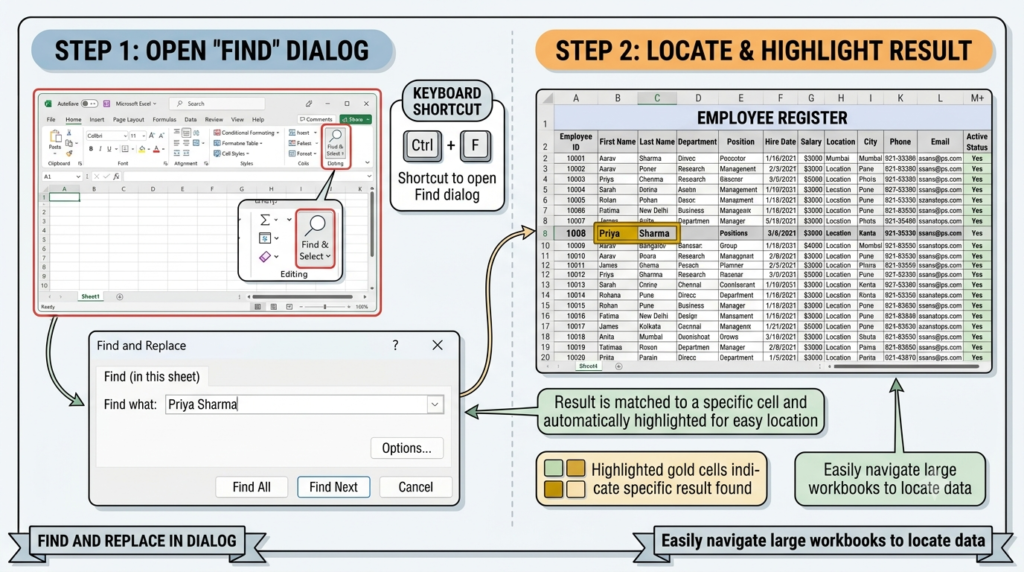
- Press Ctrl + F on the keyboard. Alternatively, select Home > Find & Select > Find.
- Enter the name or number you want to locate in the Find what box.
- Click Find Next to locate the next matching entry.
- Click Find All if you want to view all matching entries.
- Select a result to identify the corresponding cell in the worksheet.
Excel highlights the matching cell, allowing users to locate the required information quickly.
Example
Suppose an employee register contains 5,000 records, and you need to find an employee named Priya Sharma. Enter the name in the Find what box and select Find Next. Excel will locate a matching entry without requiring you to examine every row manually.
2. Replacing a Name or Number with Another Value
Yes, it is possible to replace an existing name or number with another value in Microsoft Excel. The Replace feature is used to correct spelling mistakes, update outdated information, or change repeated entries.

Steps to Replace Data
- Open the Excel worksheet.
- Press Ctrl + H or select Home > Find & Select > Replace.
- In the Find what box, enter the existing name or number.
- In the Replace with box, enter the new name or number.
- Click Replace to change one matching occurrence at a time.
- Click Replace All to change every matching occurrence within the selected search scope.
- Review the results to ensure the changes are correct.
Before using Replace All, check whether Excel is searching the current worksheet or the entire workbook. You can also use the option to match entire cell contents when you want to avoid changing cells that contain the search term as part of a longer entry.
Example
Suppose the name “Johnn” has been entered incorrectly in several employee records. Enter “Johnn” in the Find what box and “John” in the Replace with box. Selecting Replace All updates every matching occurrence within the specified search area.
Importance of Find and Replace
The Find and Replace features offer several advantages:
- Saves time: Locates information quickly in large worksheets.
- Improves accuracy: Helps identify specific names, numbers, and text entries.
- Corrects errors: Makes it easier to fix repeated spelling mistakes.
- Updates records efficiently: Changes multiple matching entries without editing each cell individually.
- Supports large datasets: Can search within a worksheet or across an entire workbook.
Conclusion
Find and Replace are important features of Microsoft Excel for managing large amounts of data. The Find command locates specific information, while Replace changes existing information to new values. Using Ctrl + F for searching and Ctrl + H for replacing helps users perform data entry and record maintenance more quickly and efficiently.