
A computer is an electronic device that takes raw data as input, processes it according to stored instructions, produces meaningful information as output, and saves it for future use.
1. How a Computer Works: The IPO Cycle
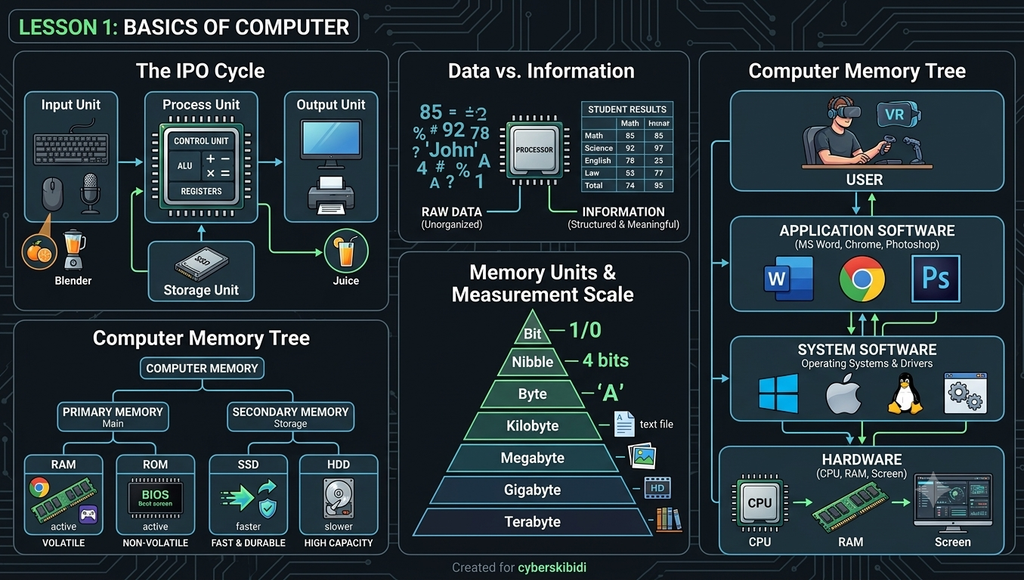
Every computer operates on a simple 3-step cycle called the IPO Cycle (Input $\rightarrow$ Process $\rightarrow$ Output).

Real-World Example of IPO
- Making Fresh Juice:
- Input: Raw oranges and sugar put into the blender.
- Process: The blender blades spin and extract juice.
- Output: A glass of fresh orange juice.
- Computer Example:
- Input: Typing
5 + 10using a keyboard. - Process: The CPU performs addition.
- Output: The screen displays
15.
- Input: Typing
2. Data vs. Information
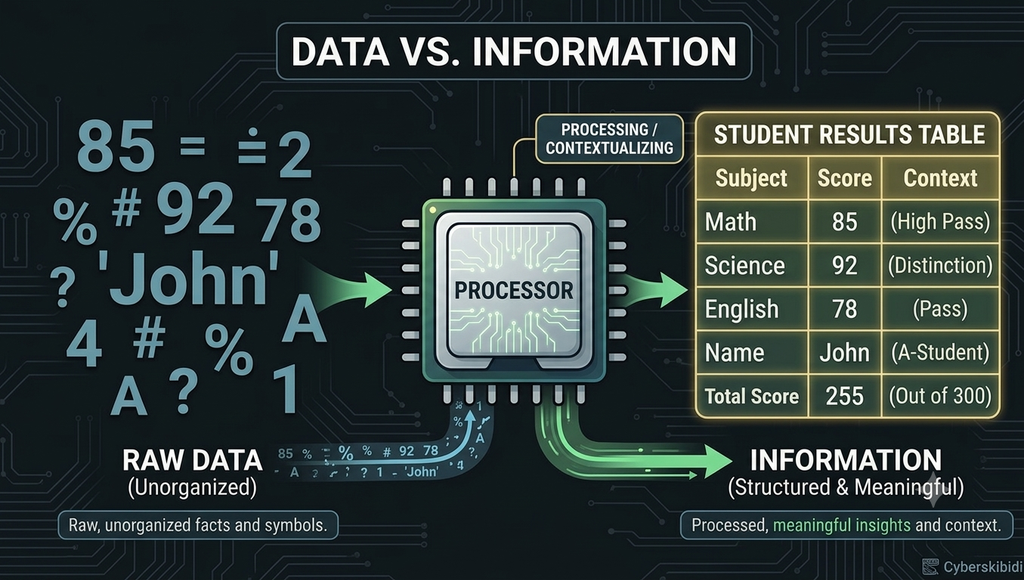
- Data: Raw, unorganized facts, numbers, or symbols that have no clear meaning on their own.
- Example:
85, 92, 78(Just random numbers).
- Example:
- Information: Processed, structured, and organized data that gives clear context and meaning.
- Example: “Student Marks: Math = 85, Science = 92, English = 78.”
3. Key Characteristics of a Computer
| Characteristic | Description | Simple Example |
| Speed | Executes millions of calculations per second (measured in Gigahertz / GHz). | Calculates complex financial balances in milliseconds. |
| Accuracy | Produces 100% error-free results if the input data and commands are correct. | Never makes addition mistakes unless the human user enters wrong data. |
| Diligence | Performs tasks continuously without fatigue, boredom, or loss of concentration. | Can run a web server 24/7 without stopping. |
| Versatility | Capable of performing vastly different types of tasks seamlessly. | Used for writing documents, editing videos, playing music, and running medical software. |
| Storage | Retains vast amounts of data in small physical spaces permanently or temporarily. | A tiny flash drive holds thousands of books and songs. |
| No IQ / Lack of Intelligence | Has no independent thoughts, feelings, or decision-making ability without human instructions. | Cannot decide to fix an error by itself unless programmed to do so. |
4. Main Components of a Computer System
A complete computer system consists of four primary functional units:
1. Input Unit
Devices that convert human understandable data into machine-readable format binary code (0s and 1s).
- Keyboard: Used to input text and numeric data.
- Mouse: Pointing device used to click, select, and drag objects.
- Scanner: Converts physical documents and photos into digital images.
- Microphone: Captures audio sound waves and converts them into digital audio signals.
2. Central Processing Unit (CPU)
Known as the “Brain of the Computer”. It interprets instructions, processes data, and manages hardware interactions. The CPU consists of three core sub-components:
- Control Unit (CU): The manager of the computer. It directs the flow of data between the CPU, memory, and input/output devices.
- Arithmetic Logic Unit (ALU): The mathematical engine.
- Arithmetic Section: Performs addition (
+), subtraction (-), multiplication (*), and division (/). - Logic Section: Performs logical comparisons like greater than (
>), less than (<), equal to (=), and AND/OR logic.
- Arithmetic Section: Performs addition (
- Registers: Ultra-fast temporary memory locations inside the CPU chip used to hold data currently being processed.
3. Storage / Memory Unit
Stores instructions and data before, during, and after processing.
4. Output Unit
Devices that convert digital binary results from the computer into human-readable formats (text, images, audio, video).
- Monitor (Display Screen): Displays visual text and graphical user interfaces.
- Printer: Produces physical hard copies on paper.
- Speakers / Headphones: Output sound and voice.
- Projector: Projects screen visuals onto large walls or presentation screens.
5. Understanding Computer Memory
Computer memory is divided into two major categories: Primary Memory and Secondary Memory.

Primary Memory (Main Memory)
- RAM (Random Access Memory):
- Role: Temporary working memory used to store active programs and data currently in use.
- Nature: Volatile — contents are lost instantly when power is turned off.
- Analogy: Your physical study desk where you keep books currently open for reading.
- ROM (Read-Only Memory):
- Role: Permanent memory storing critical system instructions (like BIOS/UEFI) required to boot up the computer.
- Nature: Non-Volatile — contents remain intact even when power is turned off.
- Analogy: A printed user manual glued inside a car’s glove compartment.
Quick Comparison: RAM vs. ROM
| Feature | RAM (Random Access Memory) | ROM (Read-Only Memory) |
| Data Retention | Temporary (Volatile) | Permanent (Non-Volatile) |
| Read/Write | Data can be read from and written to | Data can only be read |
| Speed | Extremely fast | Slower than RAM |
| Capacity | Larger (e.g., 8 GB, 16 GB, 32 GB) | Smaller (e.g., 4 MB, 8 MB) |
| Usage | Holds running apps (Browsers, Games) | Holds startup instructions (BIOS) |
Secondary Memory (Storage Devices)
Used for long-term, non-volatile storage of files, documents, operating systems, and installed software applications.
- SSD (Solid State Drive): Uses flash memory chips; extremely fast, durable, silent, and reliable.
- HDD (Hard Disk Drive): Uses spinning magnetic platters; provides high capacity at low cost, but is slower than SSDs.
- USB Flash Drive / Memory Cards: Compact, portable storage devices.
- Optical Disks (CD/DVD/Blu-ray): Uses laser beams to read and write data.
6. Units of Memory Measurement
Data in a computer is stored in bits (0 or 1). Here is the standard measurement scale:

| Unit | Symbol | Equivalence / Size |
| Bit | bit | Single binary digit (0 or 1) |
| Nibble | – | 4 Bits |
| Byte | B | 8 Bits (Stores 1 text character, like ‘A’) |
| Kilobyte | KB | 1,024 Bytes |
| Megabyte | MB | 1,024 KB (Approx. 1 MP photo) |
| Gigabyte | GB | 1,024 MB (Approx. 1 high-definition movie) |
| Terabyte | TB | 1,024 GB (Approx. 250,000 photos) |
| Petabyte | PB | 1,024 TB |
7. Computer Hardware vs. Software
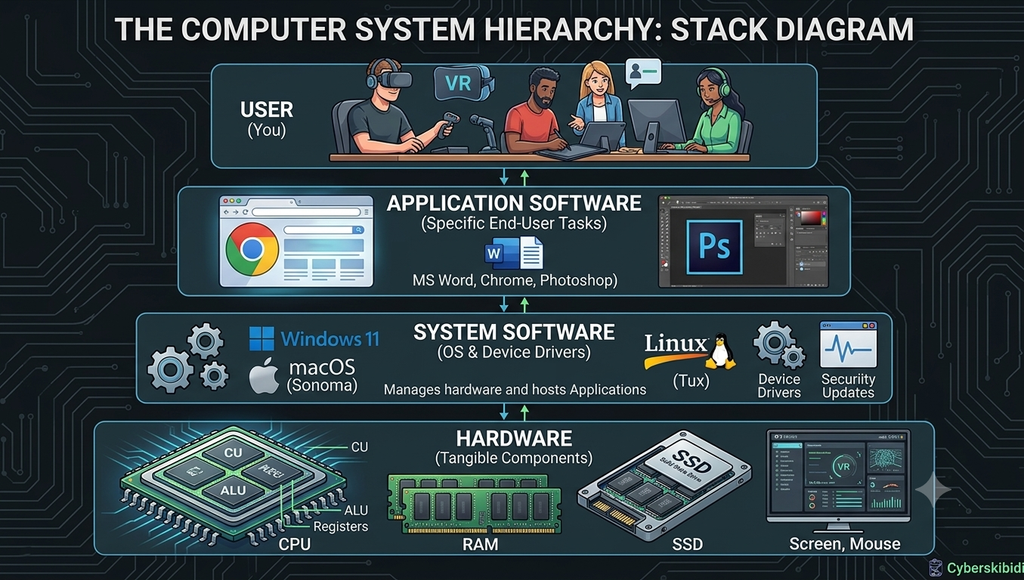
A functional computer requires both hardware and software working in unison.
Hardware
The physical, tangible parts of a computer system that you can touch and feel.
- Examples: Keyboard, Mouse, Monitor, Processor chip, Motherboard, Hard Drive.
Software
A set of step-by-step instructions or programs that tell the hardware what tasks to perform. Software cannot be physically touched.
Software is divided into three main types:
- System Software: Manages hardware resources and provides a foundation for running applications.
- Operating Systems: Windows 11, macOS, Linux, Android, iOS.
- Device Drivers: Software that enables the operating system to talk to hardware like graphics cards or printers.
- Application Software: Programs built to accomplish specific end-user tasks.
- Examples: Microsoft Word (Word Processing), Google Chrome (Web Browsing), Photoshop (Photo Editing).
- Utility Software: Tools used to maintain, optimize, and protect the computer system.
- Examples: Antivirus software, disk cleanup programs, file compression software (WinRAR).
8. Summary Checklist for Quick Revision
- [x] IPO Cycle: Input $\rightarrow$ Processing $\rightarrow$ Output.
- [x] CPU Parts: Control Unit (CU) + Arithmetic Logic Unit (ALU) + Registers.
- [x] RAM vs. ROM: RAM is volatile and temporary; ROM is non-volatile and permanent.
- [x] Basic Unit of Storage: 1 Byte = 8 Bits.
- [x] System vs Application Software: System software runs the computer (OS); Application software performs specific user tasks (Apps).