


Toolbars, Rulers, Typing Area, and Scrollbars
Introduction
Microsoft Word 2007 provides several tools and screen components that help users create, edit, and manage documents. Toolbars provide quick access to commands, rulers help arrange text and page layouts, the typing area is used to enter text, and scrollbars help users move through a document.
Understanding these components is important for students studying NIOS Class 10 Data Entry Operations. They make word processing easier, faster, and more convenient.
1. Toolbars in MS Word 2007
A toolbar is a collection of buttons or commands that allows users to perform different operations quickly. Toolbars help users access frequently used functions without searching through several menus.

MS Word 2007 provides a Quick Access Toolbar that contains commonly used commands. Users can also customize it according to their needs.
Quick Access Toolbar
The Quick Access Toolbar is generally located near the Microsoft Office Button at the top-left corner of the MS Word 2007 window.
It provides quick access to frequently used commands, regardless of which Ribbon tab is selected.
Some important commands available on this toolbar are:
1. Save: The Save command is used to save a new document or store changes made to an existing document.
2. Undo: The Undo command reverses the most recent action. It is useful when a user makes a mistake while typing or formatting a document.
3. Redo: The Redo command restores an action that was previously undone.
Users can add other frequently used commands to the Quick Access Toolbar to make their work more convenient.
Customizing the Quick Access Toolbar
The Quick Access Toolbar can be customized by adding or removing commands.

The general procedure is as follows:
- Open MS Word 2007.
- Locate the Quick Access Toolbar.
- Click the Customize Quick Access Toolbar arrow.
- Select the command that you want to add.
- The selected command will appear on the toolbar.
Users can also select the More Commands option to access additional customization settings.
Importance of Toolbars
Toolbars are useful because they provide quick access to commonly used commands. They reduce the time required to perform operations and make editing and formatting easier.
They are particularly helpful for beginners who are learning how to use MS Word.
2. Rulers in MS Word 2007
A ruler is a screen component that displays horizontal or vertical measurement scales around the typing area. Rulers help users control the arrangement and position of text within a document.
MS Word 2007 provides two main rulers:
- Horizontal Ruler
- Vertical Ruler
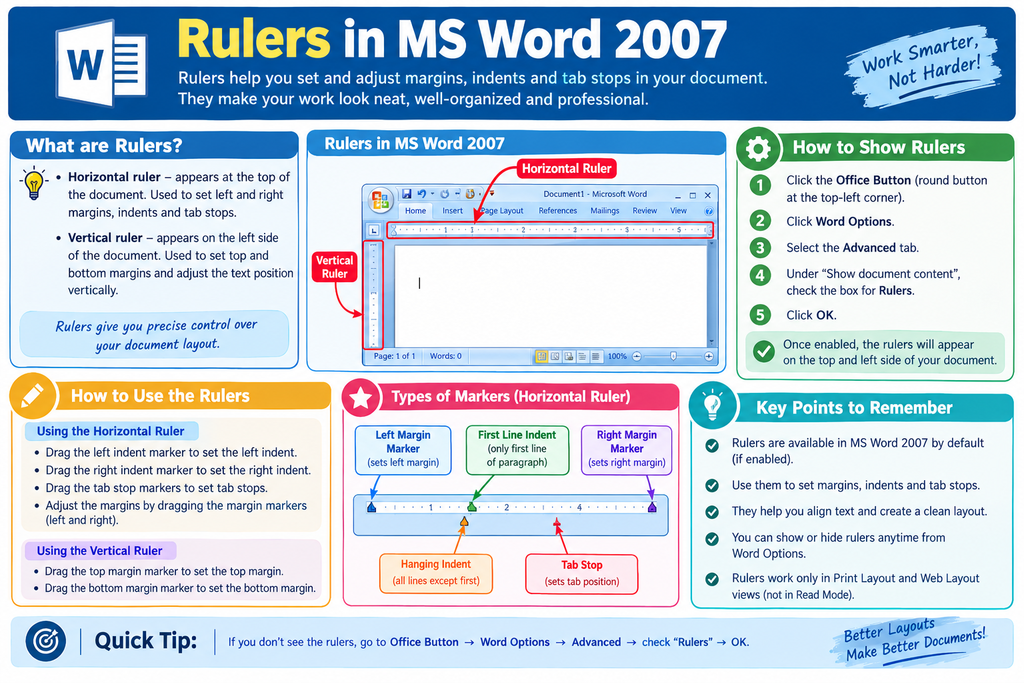
Horizontal Ruler
The horizontal ruler appears above the document’s typing area when it is enabled.
It is used to adjust paragraph indentation, tab stops, and the position of text within the page margins.
For example, the horizontal ruler can be used to move the first line of a paragraph inward or adjust the indentation of the remaining lines.
The horizontal ruler also helps users understand the available width of the document’s typing area.
Vertical Ruler
The vertical ruler appears along the side of the document when it is enabled and supported by the selected view.
It displays a vertical measurement scale and helps users understand the height and vertical arrangement of the page.
Its availability and behaviour may depend on the document view and page-layout settings.
Displaying or Hiding Rulers
Users can display or hide rulers in MS Word 2007.
Follow these steps:
- Open MS Word 2007.
- Click the View tab on the Ribbon.
- Locate the Ruler option.
- Select the Ruler option to display the rulers.
- Clear the option to hide them.
The availability of certain ruler controls may depend on the current document view.
Uses of Rulers
Rulers have several important uses:
- They help adjust paragraph indentation.
- They help set tab stops.
- They help control the position of text within the page margins.
- They provide a visual measurement scale for the document.
- They help users organize the document layout.
Rulers are particularly useful when preparing reports, letters, applications, and other documents that require proper alignment.
3. Typing Area in MS Word 2007
The typing area is the main workspace of a word-processing document. It is the area in which users enter, edit, and arrange text.
In MS Word 2007, the typing area appears below the Ribbon and rulers. It generally displays the document page on which the user is working.
Users can type letters, numbers, symbols, and paragraphs in this area. They can also insert pictures, tables, charts, and other supported objects.
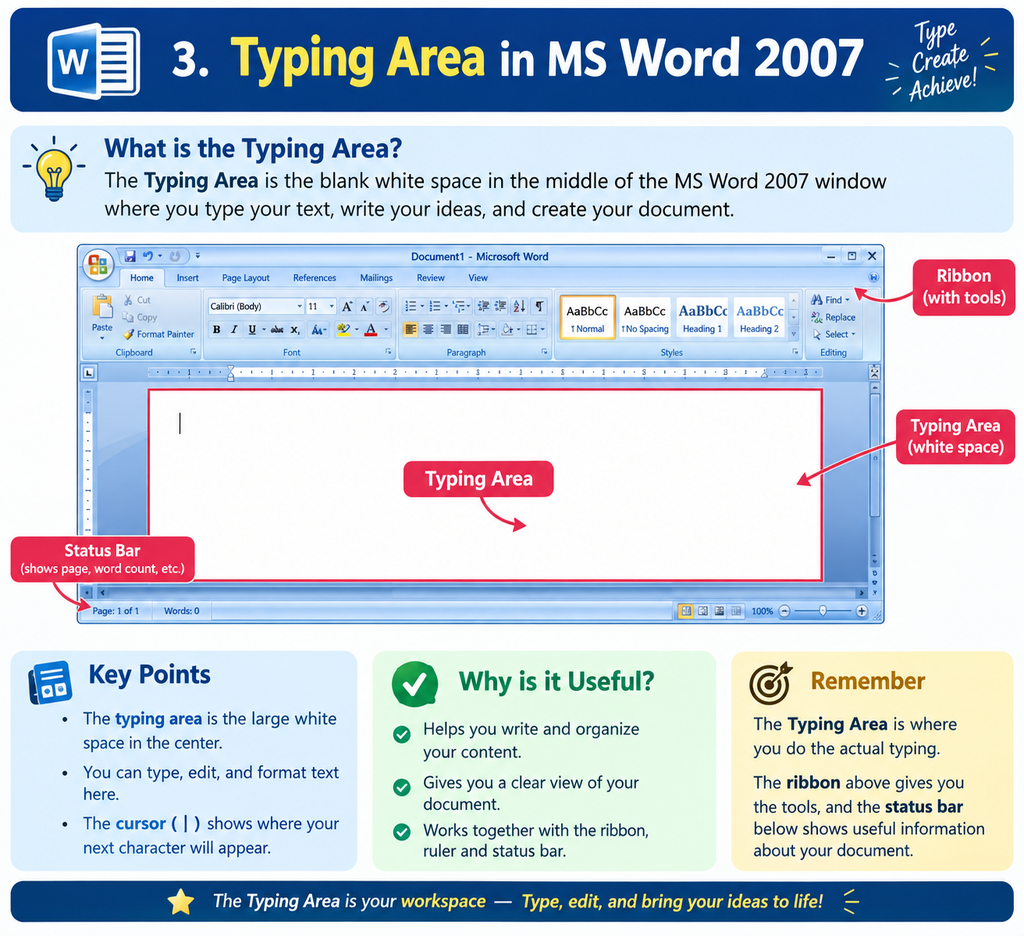
The typing area contains several important screen objects, including the insertion point, mouse pointer, and end-of-document marker.
Insertion Point
The insertion point is the blinking vertical line that indicates where the next character will appear when the user types.
When a new document is opened, the insertion point usually appears near the top-left writing position of the page.
As the user types, the insertion point moves forward through the text.
Users can move the insertion point by clicking a different location in the document or by using the arrow keys on the keyboard.
Importance of the Insertion Point: The insertion point helps users identify the exact location where new text will be entered. It is essential for typing, editing, and inserting information into the correct position.
Mouse Pointer
The mouse pointer is the on-screen indicator controlled by moving the mouse.
Its appearance changes according to the area where it is placed. In the typing area, it commonly appears as an I-shaped pointer, which helps users position the insertion point within text.
Near commands and interface controls, the pointer generally appears as an arrow.
When users click at a particular location in the text, the insertion point moves to that position.
Importance of the Mouse Pointer: The mouse pointer helps users select text, position the insertion point, click commands, and interact with document objects.
End-of-Document Marker
The end-of-document marker is a screen indicator associated with the end of a document in certain views of MS Word 2007.
In the Normal view described in the traditional NIOS lesson, it appears as a short horizontal line near the end of the document.
This marker helps identify where the document’s content ends. Its appearance depends on the selected view, and it is not necessarily displayed in every Word view.
Importance of the Typing Area
The typing area is the most important working area of a word processor because it is where users prepare the main content of their documents.
It allows users to enter new text, correct mistakes, insert additional information, and organize paragraphs.
Understanding the insertion point and mouse pointer helps beginners perform these tasks accurately.
4. Scrollbars in MS Word 2007
Scrollbars are screen controls that help users move through a document when all its contents cannot be displayed in the visible area of the window.
MS Word 2007 provides two types of scrollbars:
- Vertical Scrollbar
- Horizontal Scrollbar

Vertical Scrollbar
The vertical scrollbar is generally located along the right side of the document area.
It is used to move upward or downward through a document.
A vertical scrollbar may contain a scroll box and arrow controls. Users can drag the scroll box to move through a document or use the available controls to navigate.
For example, when a document contains many pages, the vertical scrollbar helps users move from one section to another without repeatedly pressing the keyboard’s arrow keys.
Uses of the Vertical Scrollbar:
- Moving upward through a document.
- Moving downward through a document.
- Navigating long documents.
- Accessing different pages and sections quickly.
Horizontal Scrollbar
The horizontal scrollbar is generally located along the bottom of the document area when required.
It is used to move the visible document area to the left or right.
The horizontal scrollbar is useful when part of the document extends beyond the visible width of the window. This can occur when the page is zoomed in or when a document contains wide tables or objects.
Users can drag the horizontal scroll box or use its arrow controls to move across the document.
Uses of the Horizontal Scrollbar:
- Moving the visible area to the left.
- Moving the visible area to the right.
- Viewing content that extends beyond the window.
- Navigating wide tables and other large document elements.
Difference Between Vertical and Horizontal Scrollbars
The vertical scrollbar moves the visible document area up and down, while the horizontal scrollbar moves it left and right.
The vertical scrollbar is mainly useful for navigating long documents, whereas the horizontal scrollbar is useful for viewing content that extends beyond the visible width of the window.
Both scrollbars help users navigate documents conveniently.
5. Status Bar and Zoom Controls
The bottom part of the MS Word 2007 window also contains useful document information and viewing controls.
Status Bar
The Status Bar is located at the bottom of the Word window. It displays information about the current document.
Depending on the settings, it may show the current page, total number of pages, word count, and other document information.
The Status Bar helps users check basic information about their work without opening additional menus.
Zoom Control
The Zoom Control allows users to change the magnification of the document displayed on the screen.
Increasing the zoom makes the document appear larger, while decreasing the zoom makes it appear smaller.
Changing the zoom level affects only how the document is viewed on the screen. It does not normally change the actual font size or printed dimensions of the document.
Zoom controls are useful when users need to inspect small text or view a larger portion of a page at once.
6. Importance of These Components in Word Processing
Toolbars, rulers, the typing area, scrollbars, and viewing controls perform different but complementary functions.
Toolbars provide quick access to commands, rulers help arrange document content, and the typing area is used to enter and edit text.
Scrollbars help users navigate documents, while the Status Bar and Zoom Control provide useful information and viewing options.

Together, these components make MS Word 2007 easier to use and help users prepare documents accurately and efficiently.
Conclusion
Toolbars, rulers, the typing area, and scrollbars are important components of MS Word 2007. The Quick Access Toolbar provides quick access to frequently used commands, while rulers help users adjust the position and indentation of text.
The typing area is used to enter and edit content. Its important screen objects include the insertion point, mouse pointer, and end-of-document marker. Vertical and horizontal scrollbars help users navigate documents in different directions.
The Status Bar and Zoom Control provide additional information and viewing options. Learning these components gives students a strong foundation for creating, editing, and managing documents in word-processing software.
Reference: NIOS, Class 10 Data Entry Operations (229), Lesson 3 — Basics of Word Processing, Sections 3.6.2 to 3.6.5.


