


Creating, Opening, Saving, and Managing Documents
Introduction
Microsoft Word 2007 is a word-processing application used to create, edit, save, and manage documents. Document management is an important part of word processing because it helps users organize their work and access information whenever required.
In MS Word 2007, users can create new documents, open previously saved files, save changes, and work with multiple documents simultaneously. Understanding these operations is essential for students studying NIOS Class 10 Data Entry Operations.
1. Creating a New Document
Creating a new document is the first step in preparing text using MS Word 2007. A new document provides a blank working area where users can type and organize information.
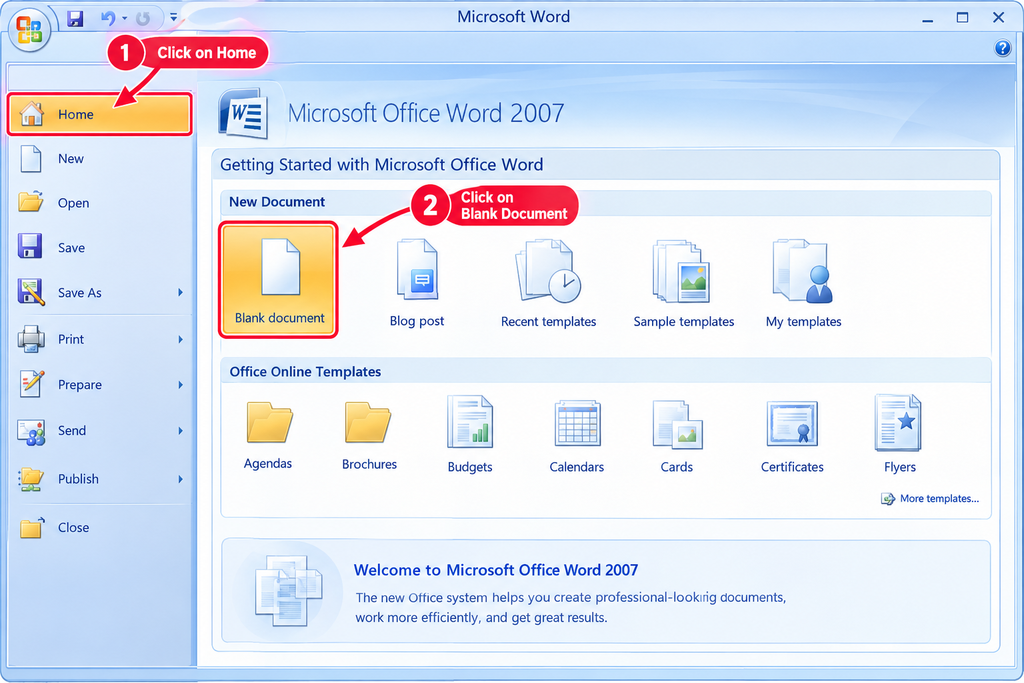
A new document can be created using the Microsoft Office Button or the keyboard shortcut.
Method 1: Using the Microsoft Office Button
Follow these steps to create a new document:
- Open MS Word 2007.
- Click the Microsoft Office Button in the upper-left corner of the window.
- Select the New option.
- Choose Blank Document.
- Click the Create button.
A new blank document will appear on the screen, and the user can begin typing.
Method 2: Using the Keyboard Shortcut
MS Word 2007 provides a keyboard shortcut for creating a new document.
Press Ctrl + N on the keyboard.
A new blank document will be created automatically.
Importance of Creating New Documents
Creating new documents allows users to prepare different types of written materials, such as letters, reports, applications, school assignments, notices, and project work.
It also helps users keep separate tasks in separate files, making information easier to organize and manage.
2. Opening an Existing Document
An existing document is a file that has already been created and saved on a computer or another accessible storage location.
MS Word 2007 allows users to open existing documents for reading, editing, and printing.
Method 1: Using the Microsoft Office Button
Follow these steps to open an existing document:
- Open MS Word 2007.
- Click the Microsoft Office Button.
- Select Open.
- The Open dialog box will appear.
- Navigate to the folder where the required document is stored.
- Select the document.
- Click the Open button.
The selected document will open in MS Word 2007.
Method 2: Using the Keyboard Shortcut
Users can also open a document by pressing Ctrl + O on the keyboard.
The Open dialog box will appear. Select the required file and click Open.
Method 3: Using File Explorer

Importance of Opening Existing Documents
Opening existing documents allows users to continue their previous work without creating the same document again.
Users can correct mistakes, add new information, update old data, and prepare revised versions of documents whenever necessary.
3. Saving a Document
Saving a document means storing its contents on a storage device so that the information can be accessed later.
It is important to save documents regularly because unsaved changes may be lost if the application or computer closes unexpectedly.
MS Word 2007 provides the Save command for storing documents.
Method 1: Using the Save Command
Follow these steps to save a document:
- Click the Microsoft Office Button.
- Select Save, or click the Save button on the Quick Access Toolbar.
- If the document has already been saved, the latest changes will be stored in the existing file.
- If the document is new, the Save As dialog box will appear.
- Choose the folder where the document should be stored.
- Enter a suitable file name.
- Click Save.
The document will be saved in the selected location.
Method 2: Using the Keyboard Shortcut
Press Ctrl + S on the keyboard.
If the document has already been saved, the changes will be saved to the same file. If it is a new document, Word will prompt the user to specify a file name and storage location.
Importance of Saving Documents
Saving documents is important for the following reasons:
- It helps prevent the loss of written work.
- It allows users to continue working later.
- It makes documents easier to retrieve and update.
- It reduces the need to recreate the same information.
- It helps maintain records for educational, personal, and official purposes.
Users should save their work regularly while preparing long documents.
4. Understanding the Save As Command
The Save As command is used to save a document with a different file name, in another location, or in another supported file format.

It is particularly useful when users want to create a separate copy of an existing document without replacing the original file.
Steps to Use Save As
- Open the document in MS Word 2007.
- Click the Microsoft Office Button.
- Select Save As.
- Choose the desired folder.
- Enter a file name.
- Select a suitable file type if required.
- Click Save.
The document will be saved using the selected name, location, and format.
Difference Between Save and Save As
Save: The Save command stores changes in the current document. When the document already has a name and location, it normally updates that file.
Save As: The Save As command allows users to specify a new name, location, or file format. It can also be used to create a separate copy of an existing document.
For example, a student may save a document as Computer_Project.docx. If the student wants to create a revised copy, the Save As command can be used to save it as Computer_Project_Final.docx, while keeping the original file.
5. Choosing a Suitable File Name
A file name identifies a document and helps users find it easily later.
When saving a document, users should choose a name that clearly describes its contents.
For example:
English_AssignmentComputer_ProjectLeave_ApplicationMonthly_ReportData_Entry_Notes
A good file name should be short, meaningful, and easy to recognize.
Users should also save documents in suitable folders so that related files remain organized.
For example, a student can create a folder named Class_10_Projects and store all project-related documents inside it.
In MS Word 2007, the default Word document format is commonly .docx. Other formats can be selected when required.
6. Working with Multiple Documents
MS Word 2007 allows users to open several documents simultaneously. This feature is useful when users need to compare information, transfer text between files, or perform different tasks at the same time.
For example, a student may open a textbook document and a separate assignment document while preparing notes.
Advantages of Working with Multiple Documents
Working with multiple documents offers several advantages:
- It allows users to work on different files without repeatedly closing and reopening them.
- It makes copying and transferring information between documents easier.
- It helps users compare information from different sources.
- It improves efficiency when handling several tasks.
- It allows users to organize related documents while working.
Using the View Tab
The View tab provides options for managing the display of open documents.
Some useful commands available in MS Word 2007 include:
New Window: Opens another window showing the current document.
Arrange All: Arranges open document windows so that they can be viewed together.
View Side by Side: Displays two documents next to each other to make comparison easier.
Switch Windows: Allows users to move between open document windows.
These options help users view and manage documents more conveniently.

7. Basic Rules for Managing Documents
Good document-management practices help users keep their work organized and safe.
The following rules are useful when working with MS Word 2007:
Save Regularly: Save your work at frequent intervals to reduce the risk of losing changes.
Use Meaningful File Names: Choose file names that clearly identify the contents of each document.
Organize Files into Folders: Store related documents together to make retrieval easier.
Maintain Separate Copies When Necessary: Use Save As to create a separate copy before making major revisions.
Check the Storage Location: Make sure the document is saved in the correct folder.
Open the Correct File: Verify the file name before editing a document to avoid making changes to the wrong file.
Review Before Saving: Check the document for typing errors and missing information before completing your work.
Following these practices helps users maintain accurate and well-organized documents.
8. Importance of Document Management in Data Entry Operations
Document management is an essential skill for data entry operators. Their work often involves creating, updating, saving, and retrieving large amounts of information.
A data entry operator may need to prepare reports, enter records, maintain documents, and make corrections to previously saved files.

Knowledge of creating, opening, saving, and managing documents helps operators perform these tasks accurately and efficiently.
It also reduces unnecessary duplication of work and improves the organization of digital records.
Conclusion
Creating, opening, saving, and managing documents are essential operations in MS Word 2007. Users can create new documents with Ctrl + N, open existing documents with Ctrl + O, and save their work with Ctrl + S.
The Save As command allows users to save documents using a different name, location, or supported file format. MS Word 2007 also provides tools for working with multiple documents, comparing files, and switching between open windows.
Learning these operations helps students develop effective document-management skills, which are useful in education, offices, businesses, and Data Entry Operations.
Reference: NIOS, Class 10 Data Entry Operations (229), Lesson 3 — Basics of Word Processing, Sections 3.7.1 to 3.7.4.


