


Protecting, Finding, and Closing Word Documents
Introduction
Microsoft Word 2007 provides several features that help users protect, locate, and close their documents. Protecting a document helps prevent unauthorized access or unwanted changes. Finding a document allows users to locate a saved file when its name or location is not fully remembered. Closing a document allows users to finish working on a file without necessarily closing the entire application.
These operations are important parts of document management in the NIOS Class 10 Data Entry Operations course. Learning them helps users manage their files safely and efficiently.
1. Protecting a Document
Document protection refers to the use of features that help prevent unauthorized access, accidental changes, or unwanted modifications to a document.
MS Word 2007 provides different ways to protect documents according to the user’s requirements. For example, a user can set a password to open a file, recommend read-only access, or use document-review features to track changes.
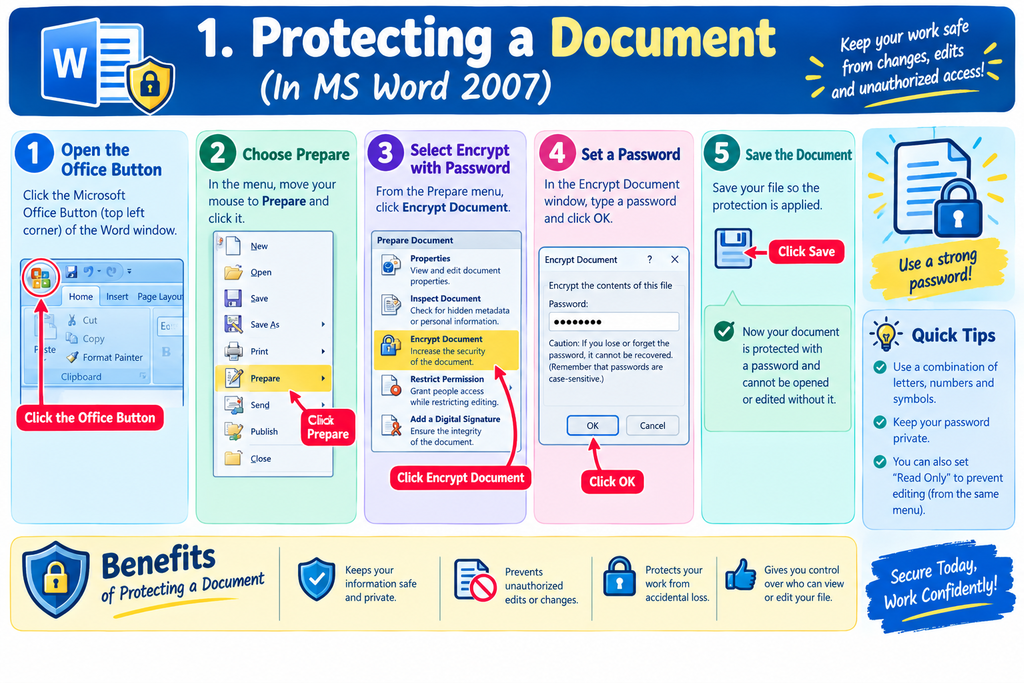
Document protection is useful when preparing confidential reports, examination papers, business documents, personal records, and other important files.
2. Protecting a Document with a Password
A password can be applied to a Word document to help prevent unauthorized users from opening it.
When password protection is enabled, users must enter the correct password before they can open the protected document.
Steps to Protect a Document with a Password
Follow these steps in MS Word 2007:
- Open the document that you want to protect.
- Click the Microsoft Office Button.
- Select Save As.
- In the Save As dialog box, click the Tools option.
- Select General Options.
- Enter a password in the Password to open box.
- Click OK.
- When prompted, enter the password again to confirm it.
- Click OK to confirm the password.
- Save the document.
The document will require the password when someone attempts to open it.
Important Points About Password Protection
A password helps protect a document from unauthorized access. Users should choose a strong password that is difficult to guess.
Passwords in MS Word 2007 are case-sensitive. For example, Word123 and word123 are treated as different passwords.
Users should keep their passwords in a secure place and avoid sharing them with unauthorized people. Forgetting the password may make it difficult or impossible to access the protected file.
3. Protecting a Document from Unwanted Changes
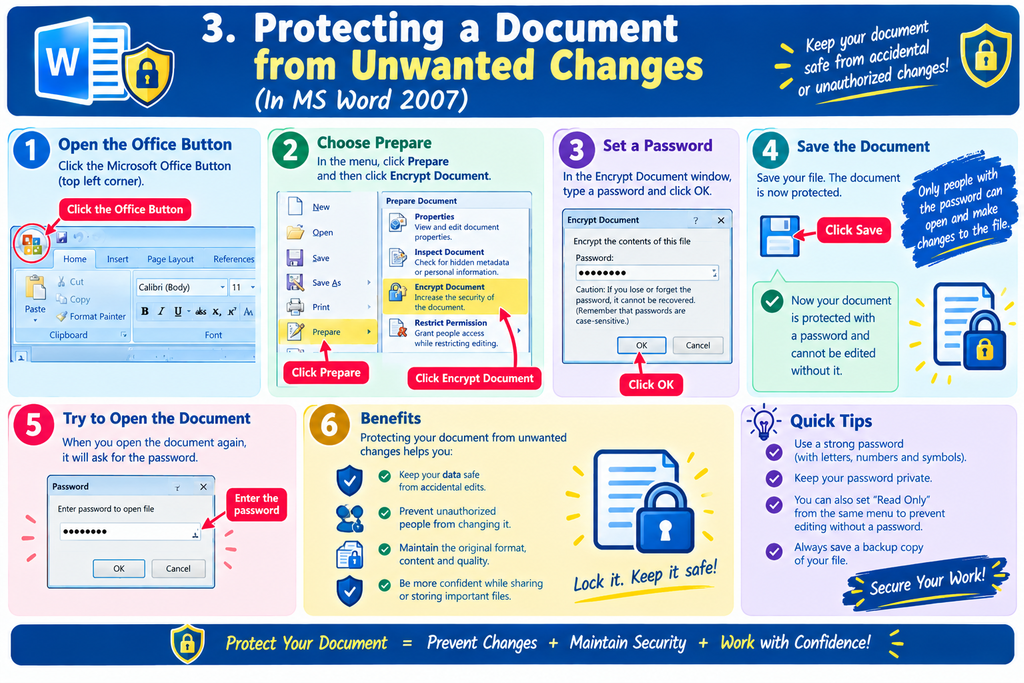
Sometimes, users need to share a document with other people but do not want the original content or formatting to be changed accidentally.
MS Word 2007 provides options that help discourage or restrict editing.
Read-Only Recommended
The Read-only recommended option advises users to open a document in read-only mode.
A read-only document can generally be viewed without making changes to the original file. If users need to edit it, they may be able to choose an editing option or save a separate copy, depending on the document’s permissions and protection settings.
Steps to Use Read-Only Recommended
- Open the document in MS Word 2007.
- Click the Microsoft Office Button.
- Select Save As.
- Click Tools in the Save As dialog box.
- Select General Options.
- Select the Read-only recommended checkbox.
- Click OK.
- Save the document.
When the document is opened again, Word recommends that it be opened as read-only.
Note: Read-only recommended is a warning, not strong security protection. It should not be relied upon to prevent unauthorized access or all changes to a document.
4. Password to Open and Password to Modify
MS Word 2007 provides two important password options in the General Options dialog box.
Password to Open
The Password to open option requires a password before the document can be opened.
It is useful when a document contains confidential information that should not be available to everyone.
Password to Modify
The Password to modify option is used to control editing of a document.
A person who does not know the modification password may be able to open the document as read-only, depending on the selected options. This allows others to view the contents without directly modifying the original file.
Difference Between the Two Passwords
Password to open: Helps prevent people without the password from opening the document.
Password to modify: Controls modification of the document and may allow people without the password to open it as read-only.
Both options can help protect documents, but users should choose the appropriate option according to the sensitivity of the information.
5. Protecting Documents with Track Changes
Track Changes is a review feature in MS Word 2007 that records modifications made to a document.
When Track Changes is enabled, Word marks changes such as inserted text, deleted text, and certain formatting changes. This allows the document owner to review the modifications before accepting or rejecting them.
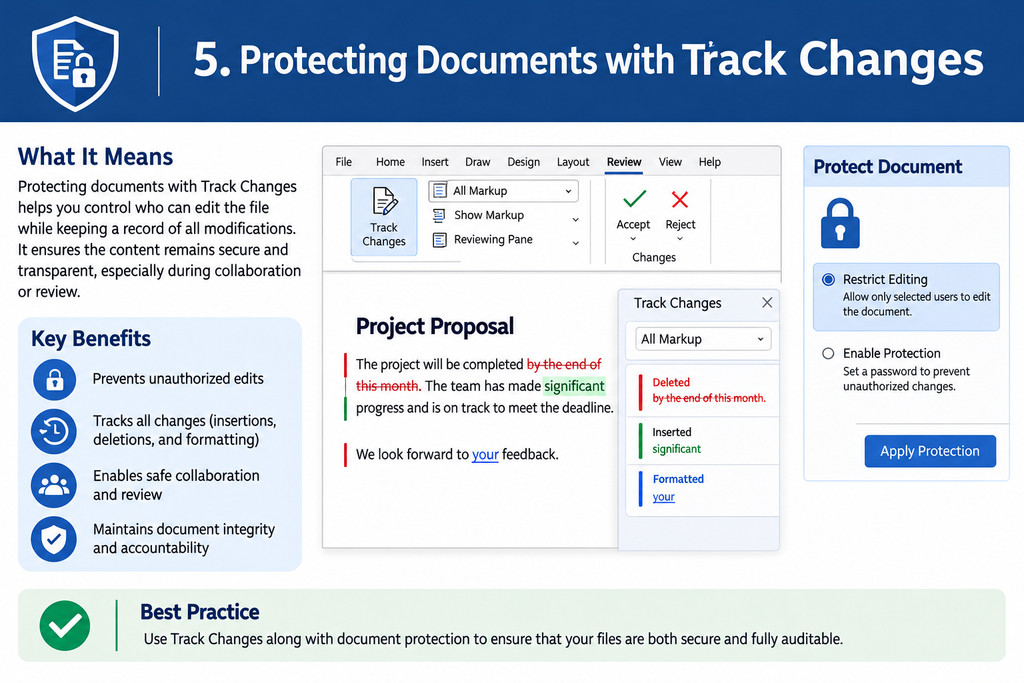
Track Changes is particularly useful when multiple people work on the same report, assignment, or official document.
How Track Changes Works
- Open the document in MS Word 2007.
- Click the Review tab.
- Locate the Tracking group.
- Click Track Changes.
- Make the required changes to the document.
- Review the marked changes later.
- Accept or reject individual changes when appropriate.
The reviewer can examine the modifications and decide which changes should become part of the final document.
Advantages of Track Changes
Track Changes provides several advantages:
- It helps identify modifications made by different reviewers.
- It makes document review easier.
- It allows users to examine edits before accepting them.
- It helps preserve the original content during the review process.
- It supports collaboration when preparing reports and other important documents.
Track Changes is a review tool, not a substitute for password protection. Documents containing sensitive information may require additional access controls.
6. Protecting Comments and Forms
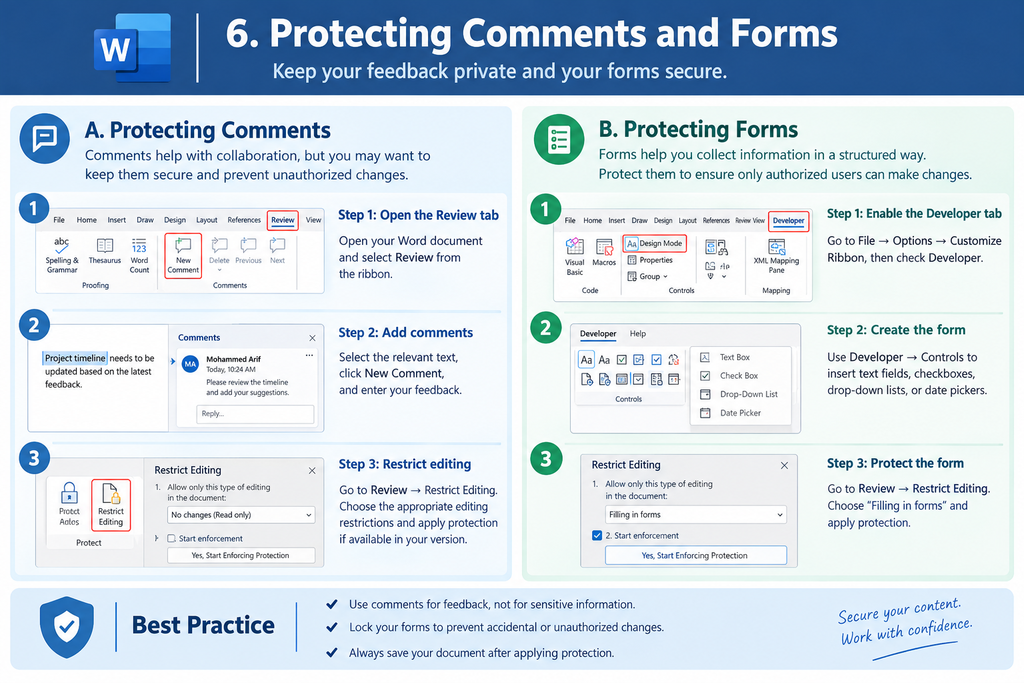
MS Word 2007 includes document-protection options that can be used when documents need to be reviewed or completed by other users.
Comments
Comments allow reviewers to add notes or suggestions without directly changing the main text of a document.
For example, a teacher can insert comments into a student’s assignment to suggest corrections or improvements.
Forms
Forms can contain fields or spaces where users enter information. Protecting a form can help limit changes to its structure while allowing users to complete the intended fields.
For example, an organization may distribute a form that requires users to enter their names, addresses, or other details.
These features help maintain the structure and purpose of documents while allowing controlled review or data entry.
7. Finding a Word Document
Finding a document means locating a previously saved file on a computer or storage device.
Sometimes, users forget the complete file name or the folder in which the file was saved. MS Word 2007 provides an Open dialog box that can help locate documents.
For example, if a file is named Annual_Report.docx and the user remembers only the word “Annual,” the user can search for the file by entering the remembered text.
Steps to Find a Document
- Open MS Word 2007.
- Click the Microsoft Office Button.
- Select Open.
- The Open dialog box will appear.
- In the Look in box, select the folder or storage location where the document may be stored.
- Enter the remembered portion of the file name in the File name box.
- Check the matching file names displayed by Word.
- Select the required document.
- Click Open to access the file.
If the document is located successfully, it can be opened for reading or editing, depending on its protection settings.
Finding a Document When Its Name Is Not Fully Known
If the complete file name is forgotten, users can enter a few letters that are part of the name.
For example, if the saved document is named Computer_Project.docx, typing Computer may help locate it.
In the file search described in the NIOS lesson, matching is not case-sensitive. This means that uppercase and lowercase letters can be used when entering the remembered text.
If the file does not appear, users should check other likely folders and storage locations.
Importance of Finding Documents
Finding documents is important because it helps users retrieve previously saved work without creating the same file again.
It also saves time, supports proper record management, and helps users continue working on existing documents.
8. Closing a Word Document
Closing a document means ending the current document session. It does not necessarily mean that the MS Word application itself has been closed.
For example, a user may close one document and continue working with another document in the same application.
MS Word 2007 provides a Close command for closing the current document.
Method 1: Using the Microsoft Office Button
Follow these steps:
- Open the document that you want to close.
- Click the Microsoft Office Button.
- Select Close.
- The current document will close.
If there are unsaved changes, Word may ask whether you want to save them before closing.
Method 2: Using the Keyboard Shortcut
Press Ctrl + W to close the active document.
If the document contains unsaved changes, Word may prompt you to save them.
Method 3: Using the Close Button
Depending on the window arrangement, a close button may be visible for the document or application window. Using the appropriate close button can close the current document or window.
Users should ensure that their changes are saved before closing a document to avoid losing important work.
9. Difference Between Closing a Document and Exiting MS Word
Closing a document and exiting MS Word are two different operations.
Closing a Document: This closes the currently active document. The Word application may remain open so that the user can continue working.
Exiting MS Word: This closes the Word application itself. Users should save any important changes before exiting.
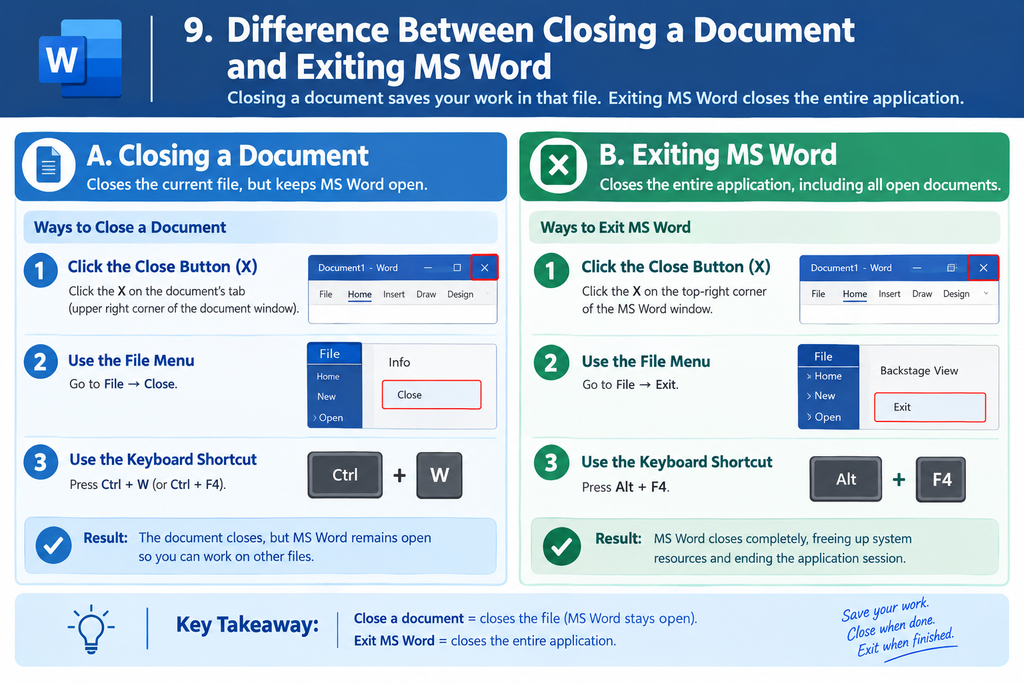
For example, if a user completes one assignment but needs to continue working on another document, the user can close the first document and keep Word open.
This distinction helps users manage multiple documents more efficiently.
10. Importance of Document Protection and Management
Protecting, finding, and closing documents are essential document-management skills.
Password protection helps restrict access to confidential files. Read-only options can reduce accidental modifications, while Track Changes helps reviewers monitor edits.
The ability to find documents saves time and makes previously saved information easier to retrieve. Closing documents properly helps users finish their work without unnecessarily closing the entire application.
These skills are useful for students, teachers, office workers, businesses, and data entry operators who regularly handle computer-based documents.
Conclusion
MS Word 2007 provides several features for protecting and managing documents. Users can apply passwords, use read-only recommendations, and use Track Changes to review modifications. These features help maintain the privacy, accuracy, and organization of documents when used appropriately.
The Open dialog box helps users locate saved files, even when they remember only part of a file name. The Close command allows users to close the current document while keeping the Word application available for further work.
Learning these operations is an important part of Basic Word Processing and helps students develop effective document-management skills.
Reference: NIOS, Class 10 Data Entry Operations (229), Lesson 3 — Basics of Word Processing, Sections 3.7.5 to 3.7.7


