

Starting MS Word 2007 and Understanding Its Window
Introduction
Microsoft Word 2007 is a word-processing application used to create, edit, format, save, and print documents. Before working with this software, users should know how to start the program and understand the basic layout of its window.
The MS Word window contains several tools and components that help users perform different tasks. Understanding these components makes document preparation easier and more efficient.
How to Start MS Word 2007
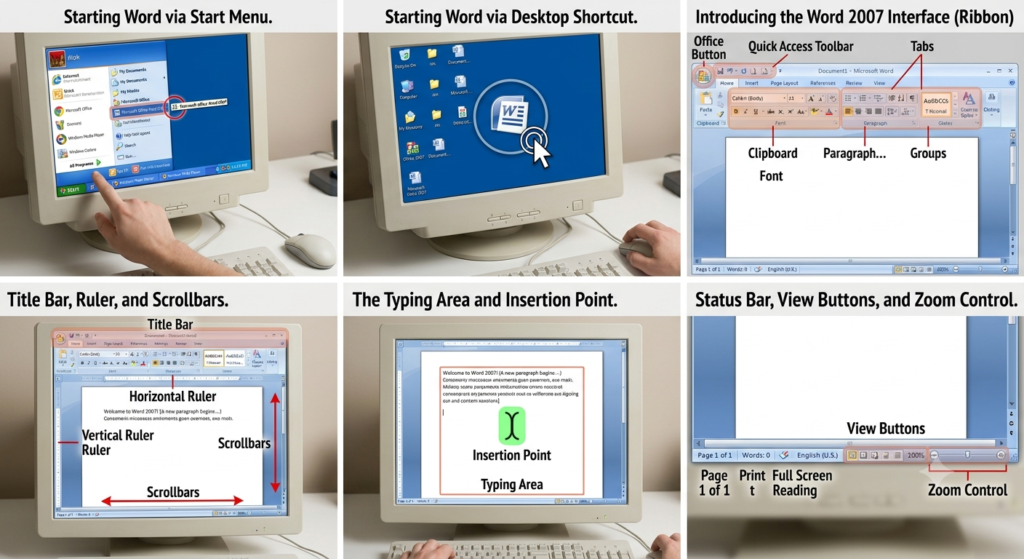
There are different ways to start MS Word 2007 on a computer. Two common methods are using the Start menu and opening the program through its shortcut icon.
Method 1: Using the Start Menu
Follow these steps to start MS Word 2007:
- Click the Start button on the Windows taskbar.
- Select All Programs from the Start menu.
- Open the Microsoft Office folder.
- Select Microsoft Office Word 2007.
- Wait for the program to open.

After completing these steps, the MS Word window appears on the screen, ready for creating or opening a document.
Method 2: Using a Shortcut Icon
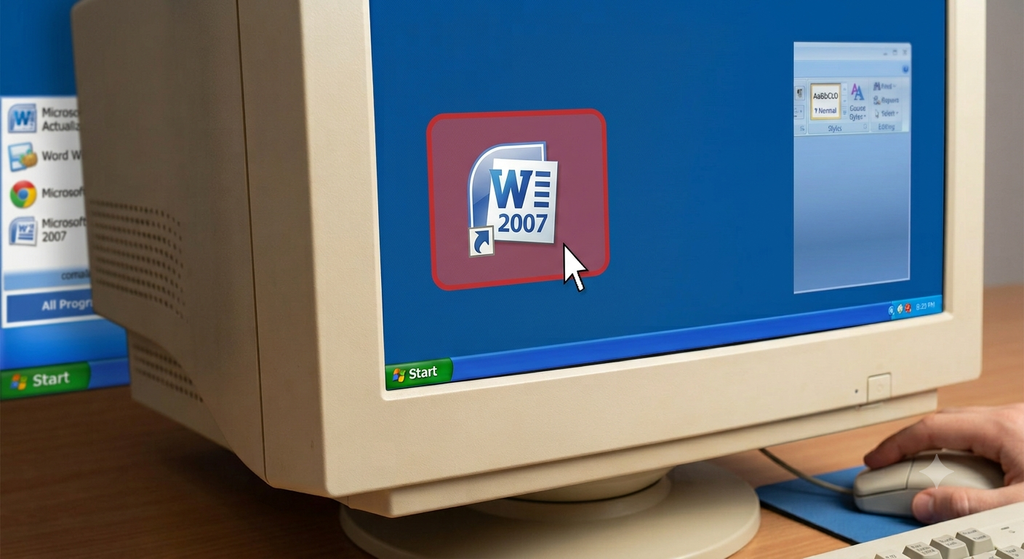
MS Word 2007 can also be started by using its shortcut icon, if one is available on the desktop or another accessible location.
Follow these steps:
- Locate the Microsoft Word 2007 shortcut icon.
- Place the mouse pointer over the icon.
- Double-click the icon using the left mouse button.
- Wait for the program to open.
The MS Word window will appear on the screen.
Understanding the MS Word Window
The MS Word window is the main working area in which users create and manage documents. It contains different components that provide access to commands, formatting tools, and document navigation options.
The main components of the MS Word 2007 window are described below.

1. Title Bar
The Title Bar is located at the top of the MS Word window. It displays the name of the currently open document and the application name.
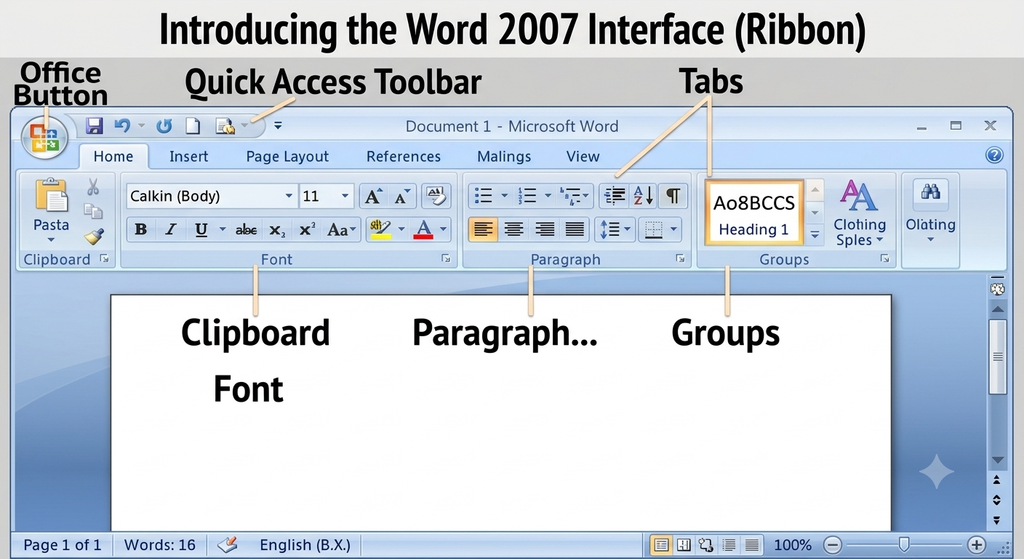
When a new document has not yet been saved, a default document name is displayed. After saving the document with a name, the Title Bar displays the assigned file name.
2. Microsoft Office Button
The Microsoft Office Button is located in the upper-left corner of the MS Word 2007 window.
It provides access to important document-related operations such as creating a new document, opening an existing document, saving a file, printing, and closing a document.
3. Quick Access Toolbar
The Quick Access Toolbar provides quick access to frequently used commands. It is generally located near the Microsoft Office Button.
By default, it commonly contains the Save, Undo, and Redo commands. Users can customize this toolbar by adding commands that they use frequently.
4. Ribbon
The Ribbon is an important component of the MS Word 2007 window. It contains tabs, groups, and command buttons arranged according to their functions.
Common tabs include Home, Insert, Page Layout, References, Mailings, Review, and View.
The Ribbon helps users locate and use the commands required for creating and formatting documents.
5. Ruler
The Ruler is used to view and adjust the layout of a document. It helps users set margins, tabs, and paragraph indents.
The horizontal ruler appears above the typing area when enabled. The vertical ruler may also be available depending on the document view and settings.
6. Typing Area
The Typing Area is the main space where users enter and edit text. It appears as a document page within the Word window.
Users can type letters, numbers, and symbols, as well as insert pictures, tables, and other supported objects.
The blinking insertion point indicates where the next typed character will appear.
7. Scrollbars
Scrollbars help users move through a document when all its contents cannot be displayed within the visible area of the window.
The vertical scrollbar is used to move up and down through the document. The horizontal scrollbar can be used to move left and right when parts of the document extend beyond the visible area.
8. Status Bar
The Status Bar is located at the bottom of the MS Word window. It displays information about the current document.
Depending on the settings, it may show the current page number, total number of pages, word count, and other document information.
9. View Buttons
View buttons allow users to change how a document is displayed on the screen.
MS Word 2007 provides document views that help users work with text and page layouts in different ways. The selected view affects how the document appears while editing, not necessarily how it will look when printed.
10. Zoom Control
The Zoom Control is located near the bottom-right area of the Word window. It allows users to increase or decrease the magnification of the document displayed on the screen.

Zooming in makes the document appear larger, while zooming out makes it appear smaller. Changing the zoom level does not normally change the actual font size or printed dimensions of the document.
Basic Tasks After Starting MS Word
After opening MS Word 2007, users can perform several basic tasks.
Creating a Document: Users can create a new document and begin typing their information.
Opening a Document: An existing Word document can be opened for reading or editing.
Entering Text: Users can type text in the typing area by placing the insertion point at the required location.
Formatting Text: Users can change the appearance of text by using the formatting commands available on the Ribbon.
Saving a Document: Users can save their work to a suitable location with an appropriate file name.
Printing a Document: After checking the document, users can use the printing options to produce a paper copy.
These operations form the foundation of working with MS Word 2007.

Importance of Understanding the Word Window
Understanding the MS Word window is important for beginners because it helps them identify the tools and commands required for different tasks.
Knowledge of the Title Bar, Ribbon, Quick Access Toolbar, typing area, ruler, and other components reduces confusion and makes it easier to work with documents.
It also helps students learn document creation, formatting, saving, and printing, which are essential skills in Data Entry Operations.
Conclusion
Starting MS Word 2007 and understanding its window are the first steps toward learning word processing. The program can be opened through the Start menu or a shortcut icon.
Its window contains several useful components, including the Title Bar, Microsoft Office Button, Quick Access Toolbar, Ribbon, Ruler, Typing Area, Scrollbars, Status Bar, View Buttons, and Zoom Control.
Learning the purpose of these components helps users work confidently and prepare documents efficiently.
Reference: NIOS, Class 10 Data Entry Operations (229), Lesson 3 — Basics of Word Processing, Sections 3.5 and 3.6.


