How to Create a Data Source Using a Word Table
Introduction
A data source is a collection of information, such as names, addresses, and phone numbers, used in Mail Merge in Microsoft Word. A Word table can be used to store this information in rows and columns. The data source is then connected to a main document to create personalized letters, labels, and other documents. https://learn.microsoft.com/en-us/answers/questions/4788832/how-do-use-a-word-table-as-a-data-source-for-a-mai
Steps to Create a Data Source Using a Word Table
- Open Microsoft Word: Create a new blank document.
- Insert a table: Click Insert → Table and choose the required number of rows and columns.
- Enter field names: In the first row, type column headings such as First Name, Last Name, Address, and City.
- Enter the records: Fill the subsequent rows with the details of each recipient. Each row should contain information for one person.
- Format the table: Ensure that each field has its own column, the headings are unique, and there are no blank rows within the data.
- Save the document: Save the Word document with a suitable name, such as
RecipientData.docx. - Connect the data source: Open your Mail Merge main document. Go to Mailings → Select Recipients → Use an Existing List and select the Word document containing the table.
- Select the table: If prompted, choose the table containing the recipient records and confirm the selection.
- Complete the Mail Merge: Insert the required merge fields into the main document and preview the results.
These steps allow Word to use a table as the source of recipient information for Mail Merge. https://learn.microsoft.com/en-us/answers/questions/4788832/how-do-use-a-word-table-as-a-data-source-for-a-mai
Example of a Word Table Data Source
| First Name | Last Name | City |
|---|---|---|
| Aarav | Sharma | Hyderabad |
| Priya | Patel | Mumbai |
| Rahul | Kumar | Delhi |
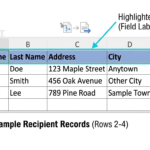
In this example, each column represents a field, and each row represents one recipient’s record.
Conclusion
Creating a data source using a Word table involves inserting a table, entering field names and recipient details, saving the document, and connecting it to the Mail Merge main document. This method helps organize recipient information and create personalized documents efficiently.