Different Features Available in the Print Command in Microsoft Excel
Introduction
Microsoft Excel is widely used to prepare worksheets, reports, budgets, and records. After entering and formatting data, users may need to produce a printed copy for reference or documentation. The Print command in Excel provides several options for controlling how worksheet data is printed.
The Print command can be opened by selecting File → Print or pressing Ctrl + P. It displays printing settings and a preview of the document before printing.
1. Print
The Print button sends the worksheet or selected content to the chosen printer using the current print settings. Users should check the preview before selecting this option.
2. Copies
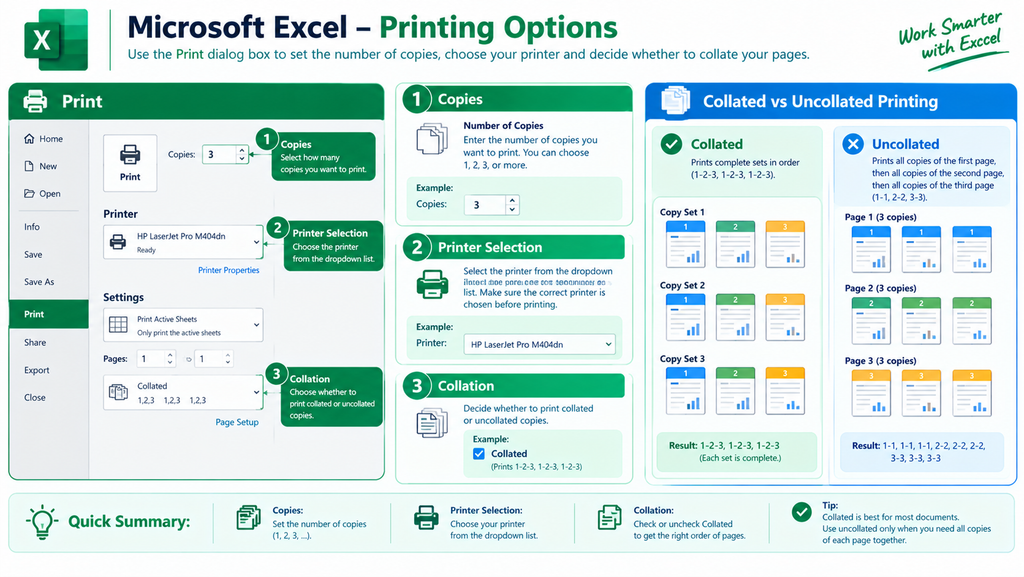
The Copies option specifies how many copies of a document should be printed. For example, entering 3 in the Copies box requests three copies of the printout.
3. Printer Selection
This feature allows users to choose an available printer. Depending on the computer, the available choices may include a physical printer or a virtual printer, such as Microsoft Print to PDF.
4. Print Selection
The Print Selection option prints only the cells or range selected in the worksheet. It is useful when users need a particular table or section rather than the complete worksheet.
5. Print Active Sheets
This option prints the active worksheet or selected worksheets in the workbook. It is useful when only the currently required sheets need to be printed.
6. Print Entire Workbook
This option prints all worksheets in the workbook. It is helpful when preparing a complete set of records, such as sales reports, attendance sheets, or financial statements.
7. Page Range
The page range setting allows users to specify the pages they want to print. For example, entering pages 2 through 4 prints only those pages instead of the entire document.
8. Page Orientation
Orientation controls the direction of the printed page. Excel provides two main options:
- Portrait: The page is taller than it is wide.
- Landscape: The page is wider than it is tall.
Portrait is generally suitable for lists with fewer columns, while Landscape is useful for worksheets containing many columns.
9. Paper Size
The Paper Size option allows users to choose the paper dimensions, such as A4, Letter, or Legal, depending on the available settings and printer capabilities. Selecting the appropriate size helps ensure that the worksheet fits the paper correctly.
10. Margins
Margins control the blank space between worksheet content and the edges of the printed page. Users can choose preset margins or customize them to improve the appearance of the printout.
11. Scaling
Scaling adjusts the size of worksheet content to fit the printed page. Users can choose options such as fitting all columns on one page or fitting the entire worksheet on one page.
Scaling is especially useful for wide worksheets, but excessive shrinking can make the printed text difficult to read.
12. Collation
Collation determines the order in which pages are arranged when multiple copies of a multi-page document are printed.
- Collated: Prints complete sets in page order, such as 1, 2, 3 followed by 1, 2, 3.
- Uncollated: Prints groups of the same page together, such as 1, 1 followed by 2, 2 and 3, 3.
This feature is useful when printing multiple copies of reports.
13. Print Preview
Print Preview displays how the worksheet is expected to appear on paper. Users can check page layout, margins, scaling, and page breaks before printing. This helps identify problems and reduce unnecessary printing.
Importance of the Print Command
The Print command helps users produce organized and readable hard copies of spreadsheet data. Its settings allow users to select the required content, control the number of copies, adjust page layout, and preview the final result. Correct use of these features saves paper, reduces printing errors, and improves the presentation of reports.
Conclusion
The Print command is an important feature of Microsoft Excel for producing hard copies of worksheet data. Its options include Print, Copies, Printer Selection, Print Selection, Print Active Sheets, Print Entire Workbook, Page Range, Orientation, Paper Size, Margins, Scaling, Collation, and Print Preview. Understanding these features enables users to print spreadsheet information accurately and efficiently.