
Introduction
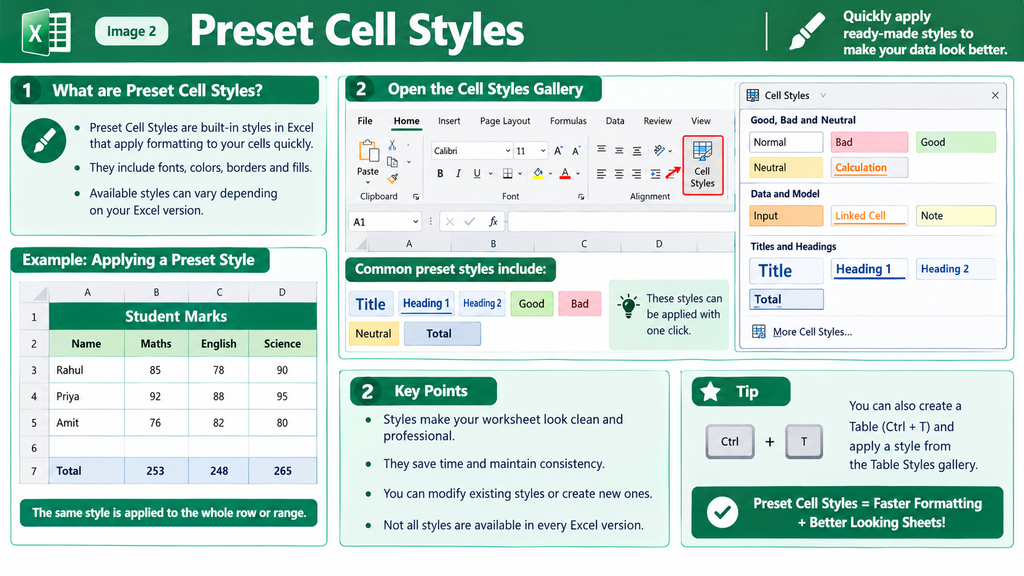
Microsoft Excel provides a collection of built-in formatting options called Cell Styles. These preset styles allow users to apply a combination of formatting attributes—such as font type, font size, color, borders, and number formats—to cells quickly.
Cell Styles are available in the Home tab, in the Styles group. They help users create attractive worksheets, highlight important values, and maintain consistent formatting without manually applying each formatting option.
Different Preset Styles Available in Excel
Excel provides several categories of preset cell styles. Each category is designed for a particular formatting purpose. The available styles may vary depending on the Excel version and workbook theme.
. Good, Bad, and Neutral Styles
These styles help indicate the status or quality of information in a worksheet.
- Good: Used to highlight positive results or satisfactory performance.
- Bad: Used to emphasize errors, poor results, or undesirable values.
- Neutral: Used for information that does not require positive or negative emphasis.
- Normal: Applies the standard cell style.
Example: In a student marks sheet, the Good style could highlight satisfactory results, while the Bad style could draw attention to low marks.
2. Data and Model Styles
These styles are designed to distinguish different types of cells in calculations, financial models, and data-entry worksheets.
Examples include:
- Input: Identifies cells where users enter data.
- Calculation: Highlights cells containing calculations or formulas.
- Output: Emphasizes the results produced by calculations.
- Check Cell: Identifies cells used for checking values or conditions.
- Warning Text: Draws attention to important warnings.
- Linked Cell: Indicates cells linked to other cells or data.
- Note: Highlights explanatory information.
- Explanatory Text: Identifies text that explains a worksheet or calculation.
Example: In a monthly budget, Input can distinguish expense entries from Calculation cells that compute the total expenditure.
3. Titles and Headings Styles
These styles help organize worksheet content by giving titles and headings a consistent appearance.
Common examples include:
- Title: Used for the main worksheet title.
- Heading 1: Used for major section headings.
- Heading 2, Heading 3, and Heading 4: Used for subordinate headings.
- Total: Used to emphasize total or summary values.
Example: In a sales report, Title can format the report name, Heading 1 can format the column headings or major sections, and Total can emphasize the final sales amount.
4. Themed Cell Styles
Themed Cell Styles use the colors associated with the workbook’s current document theme. They include accent colors and variations of those colors.
These styles help create a coordinated appearance throughout a worksheet. If the workbook theme changes, theme-based styles can update to match it.
Example: A user can apply an accent style to a summary table to distinguish it from ordinary data.
5. Number Format Styles
Number Format styles apply common number formats to selected cells quickly.
Examples include:
- Comma: Displays numbers using a thousands separator.
- Comma [0]: Displays numbers with a thousands separator and no decimal places.
- Currency: Displays values using a currency format.
- Currency [0]: Displays currency values without decimal places.
- Percent: Displays values as percentages.
Example: Applying the Percent style to a cell containing 0.25 displays it as 25%.
Steps to Apply a Preset Cell Style
- Select the cell or range of cells you want to format.
- Open the Home tab.
- Locate the Styles group.
- Click Cell Styles to open the style gallery.
- Select the appropriate preset style.
- Excel applies the selected formatting to the chosen cells.
Advantages of Preset Styles
- Save time by applying multiple formatting attributes together.
- Maintain consistent formatting throughout a worksheet.
- Improve the readability and appearance of data.
- Highlight important values, headings, and calculation results.
- Help users organize reports without formatting every cell individually.
Conclusion
Preset Cell Styles in Microsoft Excel provide a quick way to format worksheet data. The main categories include Good, Bad, and Neutral; Data and Model; Titles and Headings; Themed Cell Styles; and Number Format. Selecting the appropriate style helps users create clear, consistent, and professional-looking worksheets.