Introduction
SmartArt is a feature in Microsoft Excel that allows users to create attractive diagrams to represent information and ideas visually. It helps present complex information in a simple, organized, and understandable form. SmartArt is useful for creating process diagrams, organizational charts, cycles, and other visual representations. It was introduced in Microsoft Office 2007. <Cite refs={[“turn594378search0″,”turn594378search3”]}/>
Uses of SmartArt
SmartArt is used for the following purposes:
- Showing Processes: It illustrates the steps involved in completing a task or activity.
- Creating Organizational Charts: It represents the structure of an organization and the relationships between employees or departments.
- Showing Relationships: It explains connections between different ideas or items.
- Representing Cycles: It displays a sequence of stages that repeats continuously.
- Presenting Information Clearly: It converts text-based information into organized visual diagrams.
Types of SmartArt Graphics
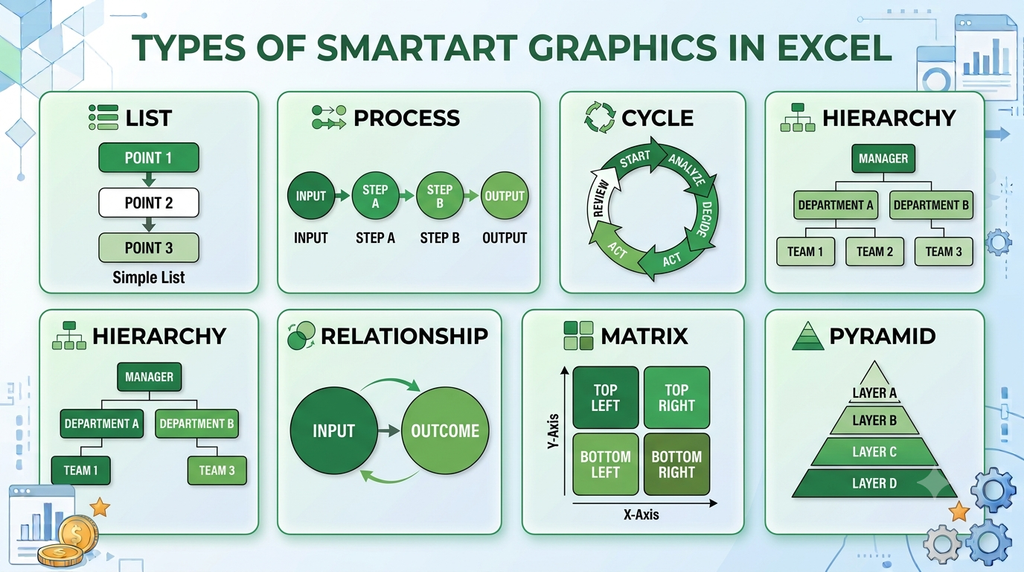
Some common types of SmartArt graphics are:
- List: Presents related information in an organized manner.
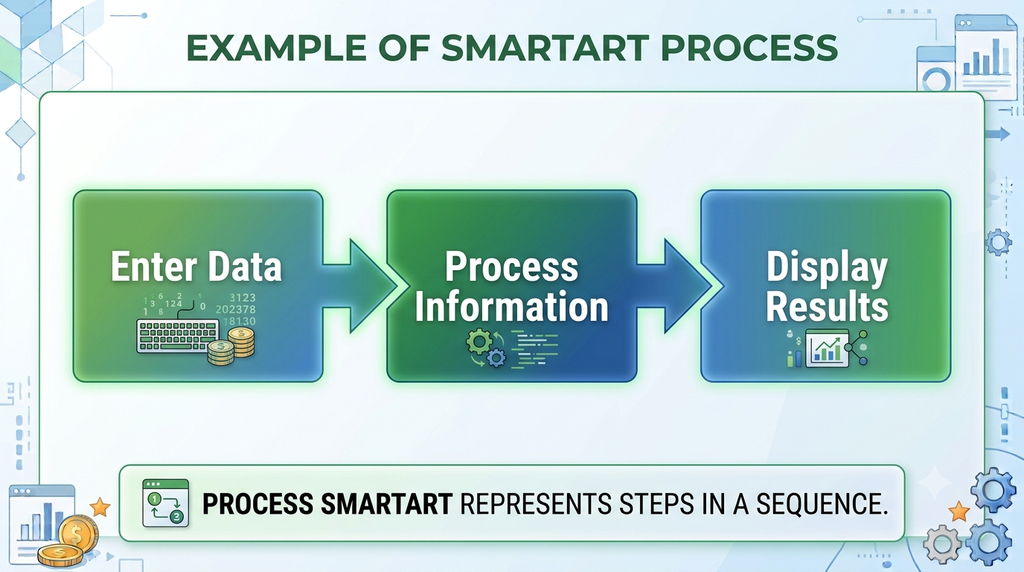
- Process: Shows steps or stages in a sequence.
- Cycle: Represents a repeating sequence of events or stages.
- Hierarchy: Displays levels of authority or organizational structure.
- Relationship: Illustrates connections between ideas or elements.
- Matrix: Shows how different elements relate to a central concept or to one another.
- Pyramid: Presents information in levels, often from a base to a top point.
Steps to Insert SmartArt in Excel 2007
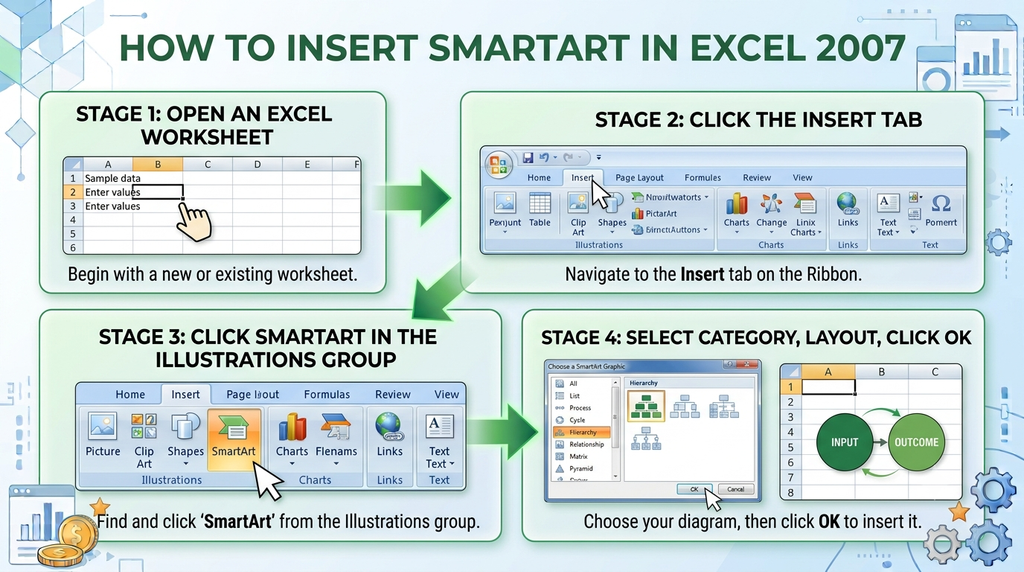
- Open Microsoft Excel 2007 and select the worksheet where you want to insert the diagram.
- Click the Insert tab on the Ribbon.
- In the Illustrations group, click SmartArt.
- The Choose a SmartArt Graphic dialog box appears.
- Select the required category, such as Process, Cycle, or Hierarchy.
- Choose a suitable layout and click OK.
- Enter your text in the shapes or use the Text pane.
- Use the SmartArt Tools options to change colors, styles, and formatting as required. <Cite refs={[“turn594378search12″,”turn594378search15”]}/>
Advantages of SmartArt
- Makes worksheets more attractive and professional.
- Helps explain information visually.
- Saves time by providing ready-made diagram layouts.
- Makes processes and relationships easier to understand.
- Allows users to customize colors, styles, and shapes.
Conclusion
SmartArt is a useful Excel feature for presenting information through ready-made diagrams. It helps users create lists, processes, cycles, hierarchies, and relationship diagrams quickly and effectively. By choosing a suitable layout and applying appropriate formatting, users can make worksheets clearer and more informative.