Introduction
Microsoft Excel provides several formatting tools to improve the appearance and readability of worksheets. One of these tools is Format Painter, which allows users to copy formatting from one cell or range of cells and apply it to another. It helps maintain a consistent appearance throughout a worksheet without requiring users to repeat the same formatting steps manually.
Meaning of Format Painter
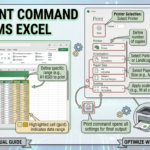
Format Painter is a feature available on the Home tab in Microsoft Excel. It copies formatting attributes from a source cell and applies them to a destination cell or range of cells.
Formatting attributes may include font type, font size, font color, bold or italic effects, cell borders, background fill, alignment, and number formatting. Format Painter transfers formatting rather than the actual cell contents.
Steps to Use Format Painter
- Open the Excel workbook containing the cells you want to format.
- Select the cell that has the formatting you want to copy.
- Go to the Home tab.
- In the Clipboard group, click Format Painter.
- Move the paintbrush-shaped pointer to the destination cell or range of cells.
- Drag across the destination range or select the destination cell to apply the formatting.
- To apply the same formatting to multiple separate ranges, double-click Format Painter before selecting the destinations.
- Press Esc or click Format Painter again to turn off the tool when finished.
When Is Format Painter Useful?
1. Maintaining Consistent Formatting
Format Painter helps maintain a uniform appearance across worksheets. Users can apply the same font, color, borders, and alignment to multiple headings or tables.
2. Saving Time
Instead of manually applying several formatting settings, users can copy the complete formatting from an existing cell in a single operation. This is particularly helpful when working with large worksheets.
3. Formatting Multiple Cells
By double-clicking Format Painter, users can apply the copied formatting to several different cells or ranges without selecting the source formatting again each time.
4. Improving Worksheet Presentation
Format Painter helps make reports, tables, and data-entry forms more organized and professional by applying consistent formatting throughout the worksheet.

Example
Suppose cell A1 contains a heading formatted with bold white text, a dark blue background, and centered alignment. To apply the same appearance to another heading in cell A15, select A1, click Home → Format Painter, and then select A15. Excel applies the formatting to A15 without copying the text from A1.
Advantages of Format Painter
- Easy to use: Copies formatting with only a few steps.
- Saves time: Reduces repetitive formatting work.
- Ensures consistency: Keeps headings and tables visually uniform.
- Supports multiple ranges: Allows formatting to be applied to several destinations when the tool is activated for repeated use.
- Improves readability: Helps create clear and well-organized worksheets.
Conclusion
Format Painter is a useful Microsoft Excel feature for copying and applying cell formatting quickly. It is especially valuable when users need consistent headings, tables, borders, colors, and number formats across a worksheet. By reducing repetitive work and improving visual consistency, Format Painter makes spreadsheet formatting more efficient.