

Introduction
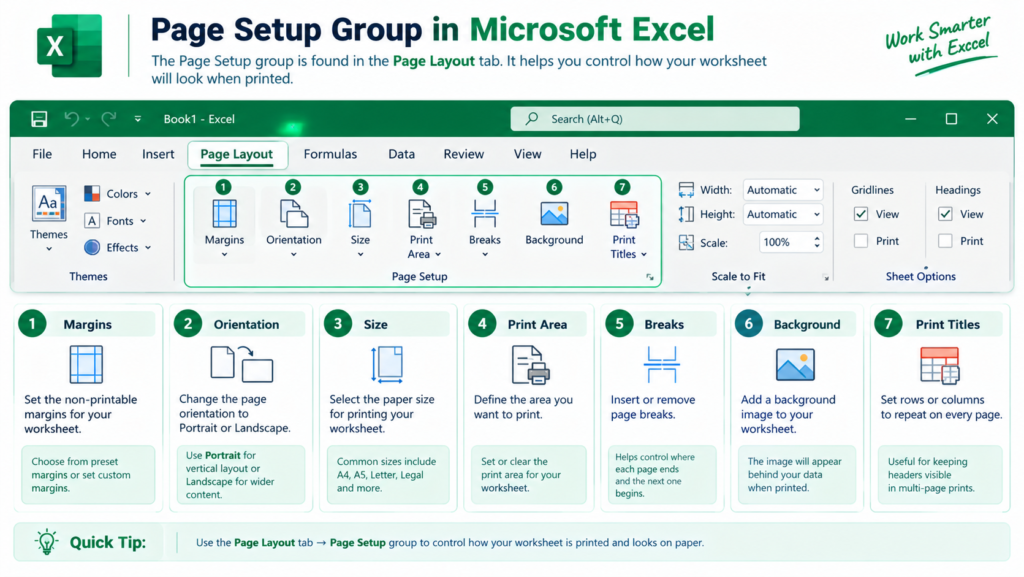
Microsoft Excel provides a Page Setup group on the Page Layout tab to control how a worksheet appears when printed. These settings help users arrange data properly on paper, select suitable paper dimensions, control page breaks, and repeat headings on printed pages. They are especially useful when preparing reports, tables, and large worksheets for printing.
1. Margins
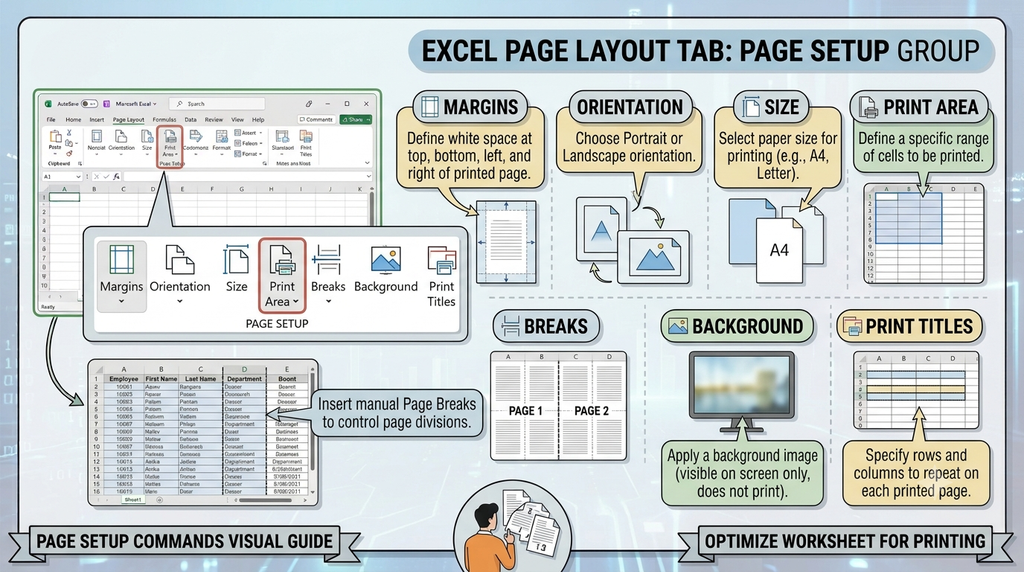
The Margins feature controls the blank spaces between worksheet data and the edges of the printed page. Excel provides preset options such as Normal, Wide, and Narrow, as well as custom margins.
Use: Margins help position data neatly and provide sufficient space for headers, footers, and page numbers.
2. Orientation
The Orientation feature determines whether a page is printed vertically or horizontally. It has two main options:
- Portrait: The page is taller than it is wide.
- Landscape: The page is wider than it is tall.
Use: Portrait is suitable for lists with fewer columns, while Landscape is useful for worksheets containing many columns.
3. Size
The Size feature allows users to select the paper size for printing, such as A4, Letter, or Legal, depending on the available printer and settings.
Use: Selecting the correct paper size helps ensure that the worksheet fits the paper properly.
4. Print Area
The Print Area feature specifies which part of a worksheet should be printed. Users can select a range of cells and set it as the print area instead of printing the entire worksheet.
Use: It is useful when only a particular table, report, or section of a large worksheet is required in the printout.
5. Breaks
The Breaks feature allows users to insert, remove, or reset page breaks. Page breaks determine where worksheet content continues on the next printed page.
Use: This feature helps control how large worksheets are divided across multiple pages and prevents tables from breaking at inconvenient points.
6. Background
The Background feature allows users to place an image behind the cells of a worksheet for display purposes.
Use: A background image can make a worksheet visually distinctive. However, the worksheet background inserted through this feature is not printed as part of the normal worksheet printout.
7. Print Titles
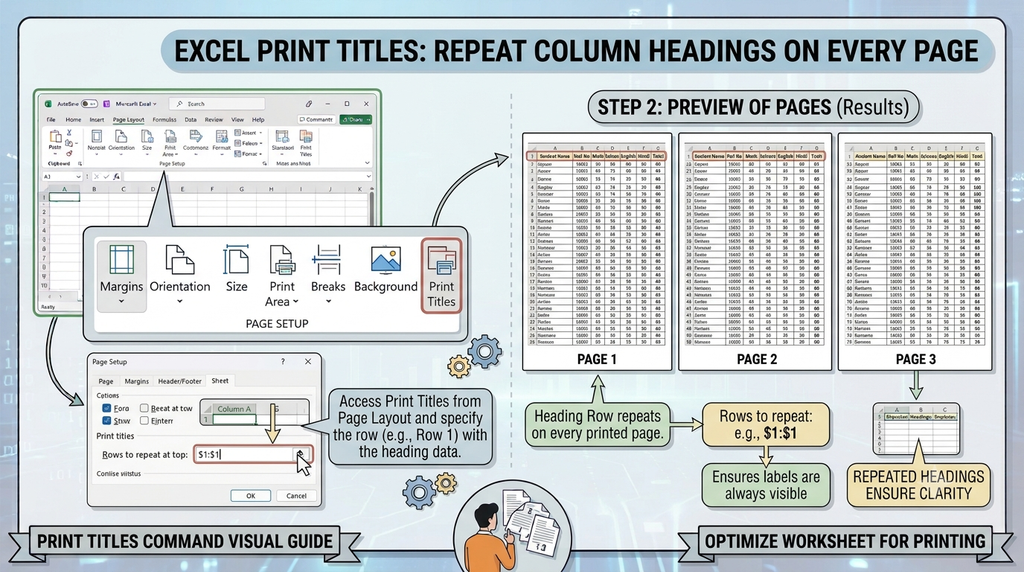
The Print Titles feature allows selected rows or columns to repeat on every printed page. For example, a heading row containing column names can be repeated at the top of each page.
Use: This is particularly helpful when printing long tables because readers can identify the meaning of each column on every page.

Additional Page Setup Options
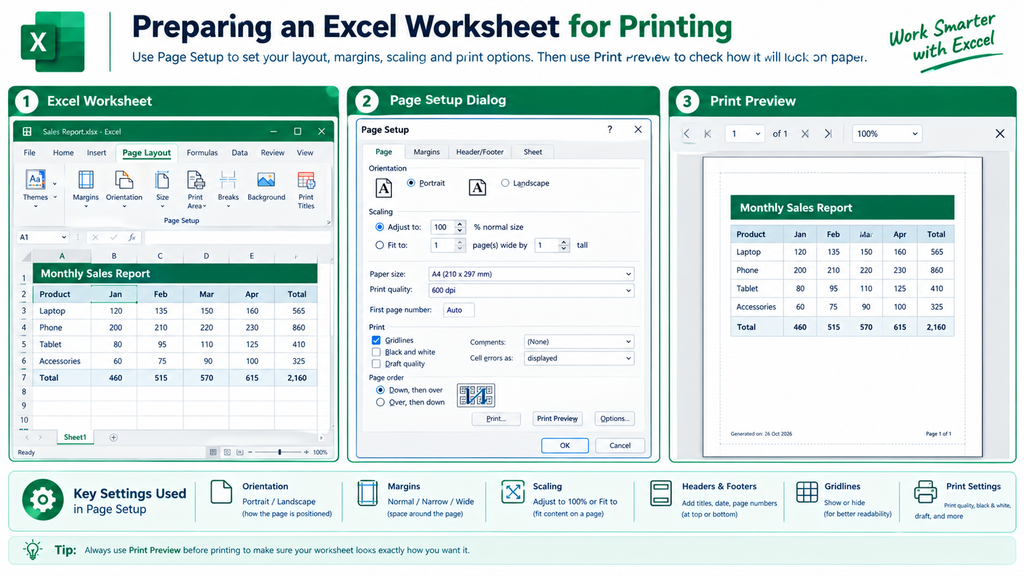
The Page Setup dialog box also provides options for adjusting page scaling, configuring headers and footers, setting print quality, including gridlines or row and column headings, and controlling the order in which pages are printed.
These options help users prepare a worksheet for printing in a clear, organized, and professional format.
Conclusion
The Page Setup features in Microsoft Excel include Margins, Orientation, Size, Print Area, Breaks, Background, and Print Titles. Each feature serves a specific purpose in arranging worksheet content for printing. By using these options correctly, users can create well-organized printouts that are easier to read and manage.


Easy to understand and the infographics are really helpful to learn