
Difference Between Moving and Copying Cells in Microsoft Excel
Introduction
Microsoft Excel provides several tools for managing worksheet data. Two common operations are moving cells and copying cells. These operations help users rearrange information, duplicate records, and organize data efficiently. Although both operations place information in a new location, they differ in how they affect the original data.
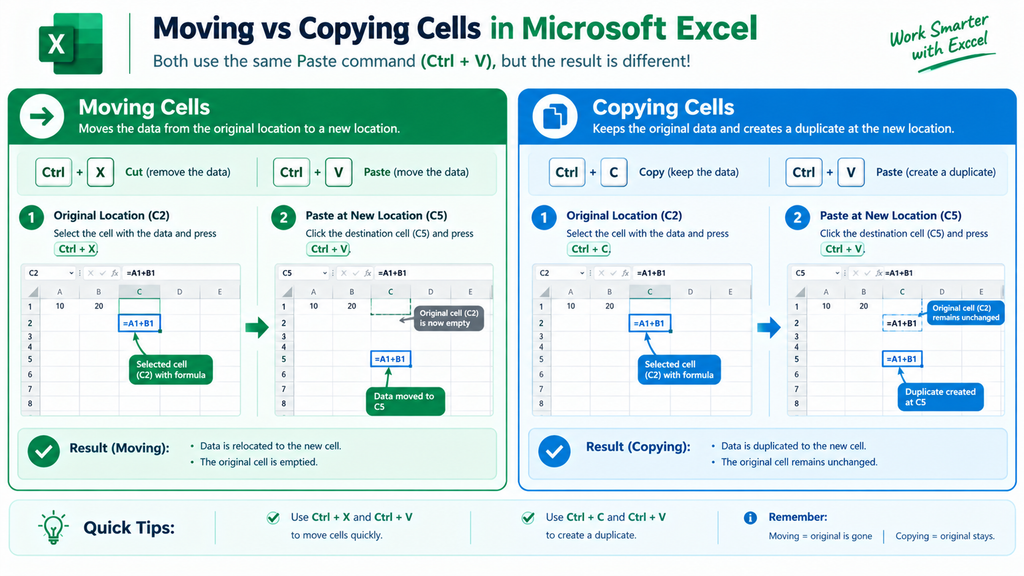
Moving cells transfers the selected data from its original location to a new location, whereas copying cells creates a duplicate at the destination while keeping the original data unchanged.
1. Moving Cells in Excel
Moving cells means relocating data from one part of a worksheet to another. After the move is completed, the data is no longer in its original location.
Steps to Move Cells
- Open the Excel worksheet.
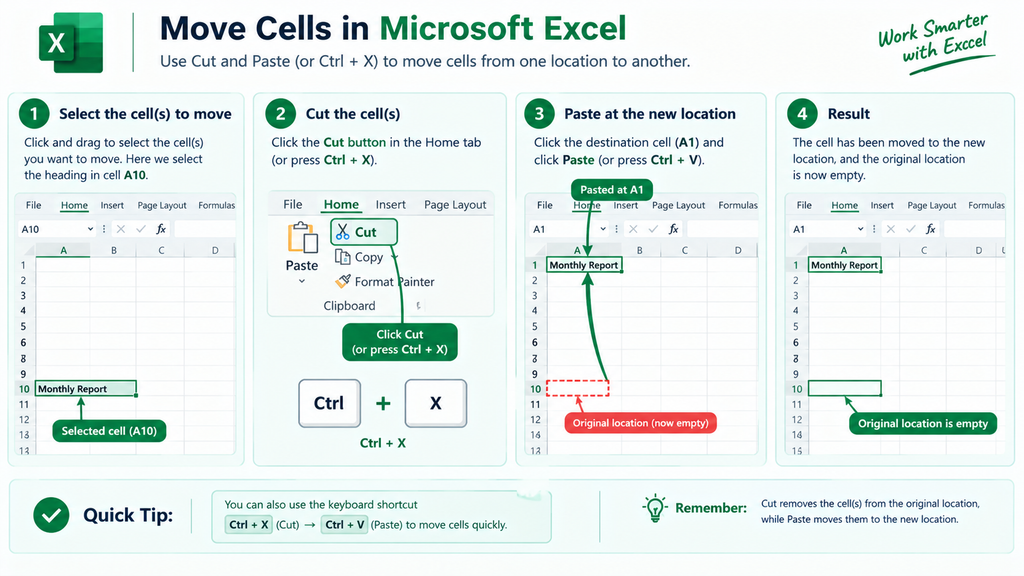
- Select the cell or range of cells you want to move.
- Press Ctrl + X to cut the selected data.
- Click the destination cell where you want to place the data.
- Press Ctrl + V to paste it.
- Check the destination to ensure the data has been moved correctly.
Users can also move selected cells by dragging the border of the selection to another location, provided drag-and-drop editing is enabled.
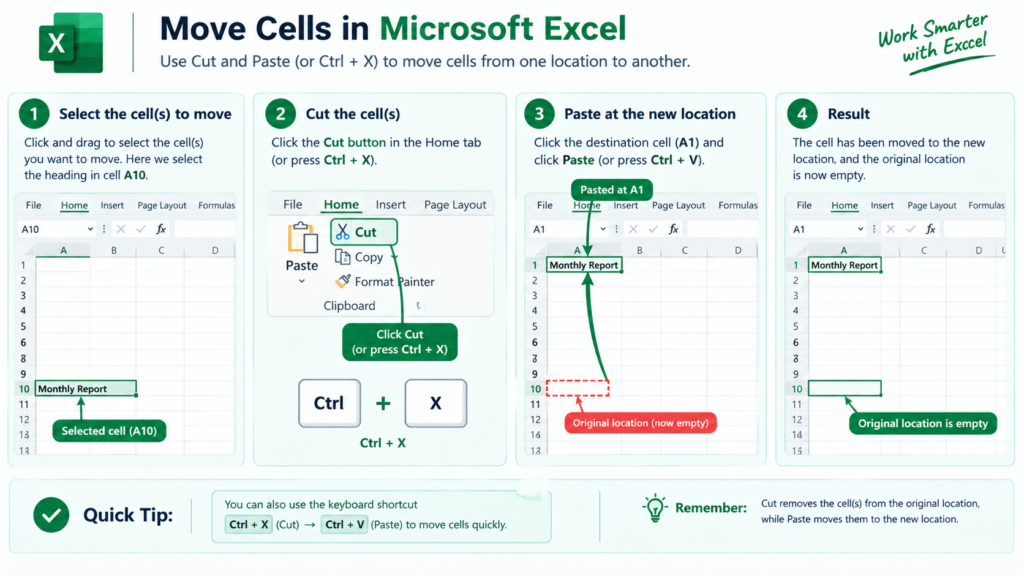
Example: If a heading is mistakenly entered in cell A10 instead of A1, the user can cut the heading from A10 and paste it into A1. The heading is relocated to the correct position.
2. Copying Cells in Excel
Copying cells means creating a duplicate of the selected data at another location. The original information remains unchanged.
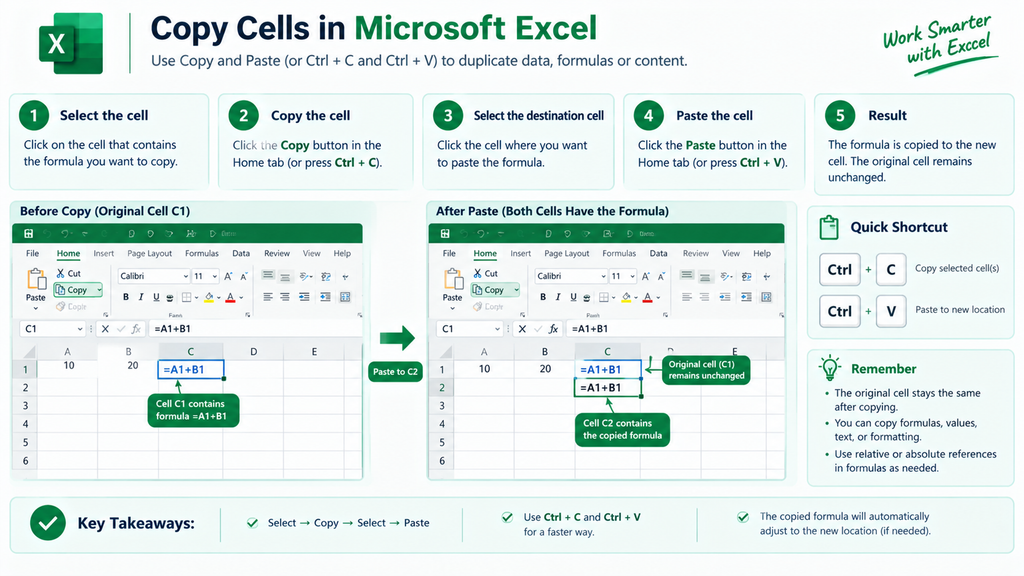
Steps to Copy Cells
- Open the Excel worksheet.
- Select the cell or range of cells you want to copy.
- Press Ctrl + C to copy the selected data.
- Click the destination cell.
- Press Ctrl + V to paste the copied data.
- Verify that the copied information appears correctly at the destination.
Excel can copy cell contents along with formulas, formatting, and other cell information. Users can also choose Paste Special options to copy only values, formulas, or formatting.
Example: A user can copy a tax-rate formula from cell C1 into several cells below it while keeping the original formula in C1.
Main Differences Between Moving and Copying Cells
| Moving Cells | Copying Cells |
|---|---|
| Transfers data from one location to another. | Creates a duplicate of data at another location. |
| Uses Ctrl + X followed by Ctrl + V. | Uses Ctrl + C followed by Ctrl + V. |
| The original contents are removed from the source location after the move. | The original contents remain in the source location. |
| Useful for correcting misplaced information and rearranging data. | Useful for duplicating records, formulas, and formatting. |
| Moves the selected content to a new location. | Leaves the source content intact while creating a copy. |
Importance of Moving and Copying Cells
Moving and copying cells are useful for maintaining well-organized worksheets. Moving helps correct misplaced information and rearrange records, while copying allows users to reuse existing information without entering it again.
These operations can save time and reduce typing errors. However, users should check the destination before pasting because existing data may be overwritten. When copying formulas, they should also review cell references, as relative references may change according to the destination.
Conclusion
Moving and copying cells are essential operations in Microsoft Excel. Moving relocates information and removes it from its original location, while copying creates a duplicate and preserves the original. The shortcuts Ctrl + X and Ctrl + V are used to move data, whereas Ctrl + C and Ctrl + V are used to copy it. Understanding these operations helps users manage spreadsheet information more accurately and efficiently
.